
Markdown Editor
Write Markdown, update the rendered preview and download the Markdown or HTML when it is ready.
Open toolTurn Markdown into a simple HTML email with inline styles. Preview the body and download email.html; sending and email-client testing happen in your own workflow.
Enter the inputs, then select Convert email.
Result will appear here
Render sanitized Markdown into a single-column email body and apply inline styles to common text elements.
Creates HTML only; it does not send email or verify delivery. Remote images and active content are omitted. The preview is a browser view, not a test across Gmail, Outlook or every email client. Paste or import the HTML using your sending tool and test a real message.
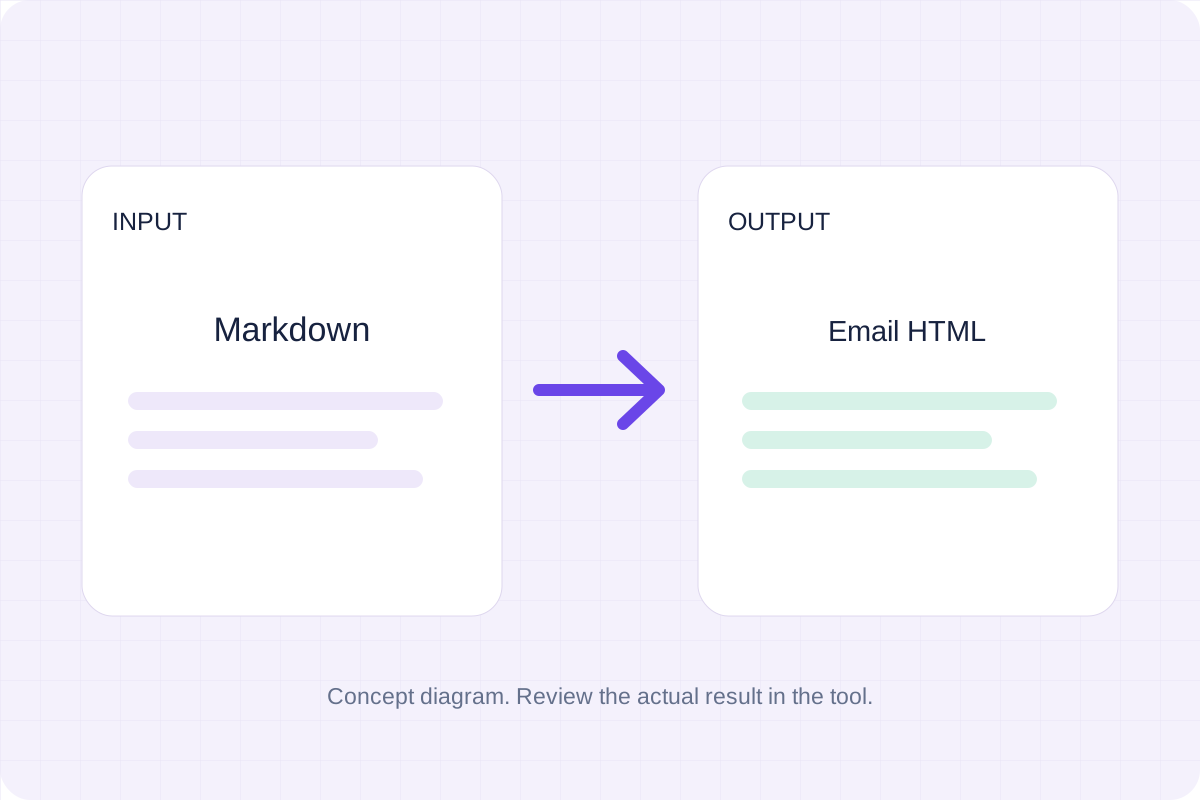
Paste a text-focused Markdown message, convert it to inline-styled HTML, and download the document for your sending tool.
Use a heading, paragraphs, lists and links for the simple single-column body. Remote images and active content are omitted.
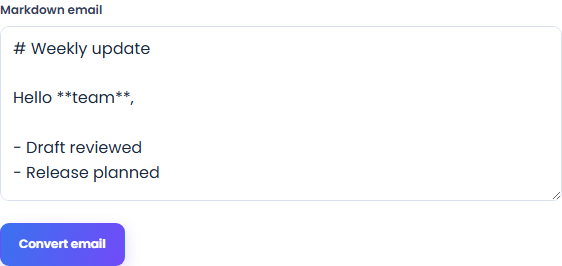
Select Convert email to generate a single-column HTML email body. The page applies inline styles to common text elements and provides a browser preview for review.
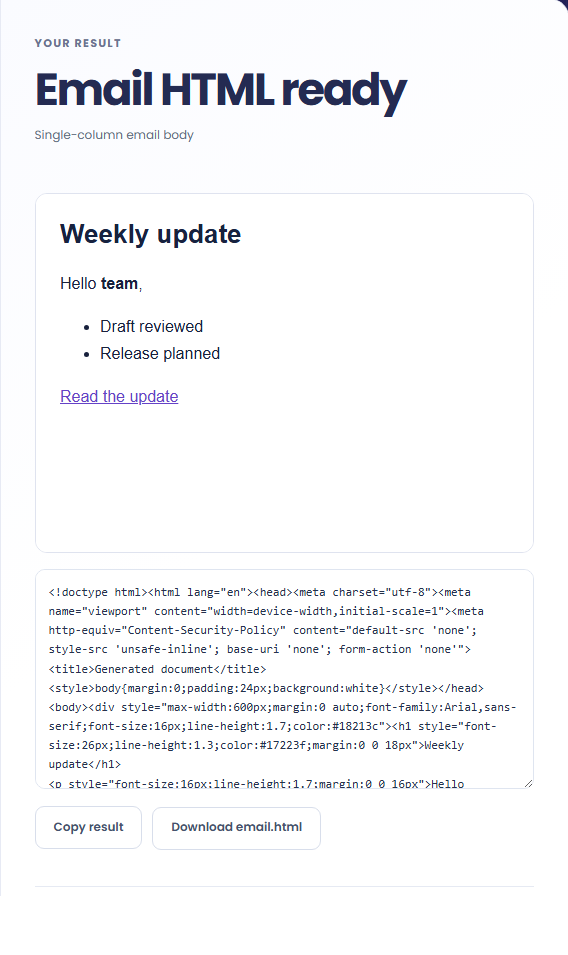
Convert the message and inspect the preview and inline HTML. Download email.html, import it into your email workflow and send a test message.
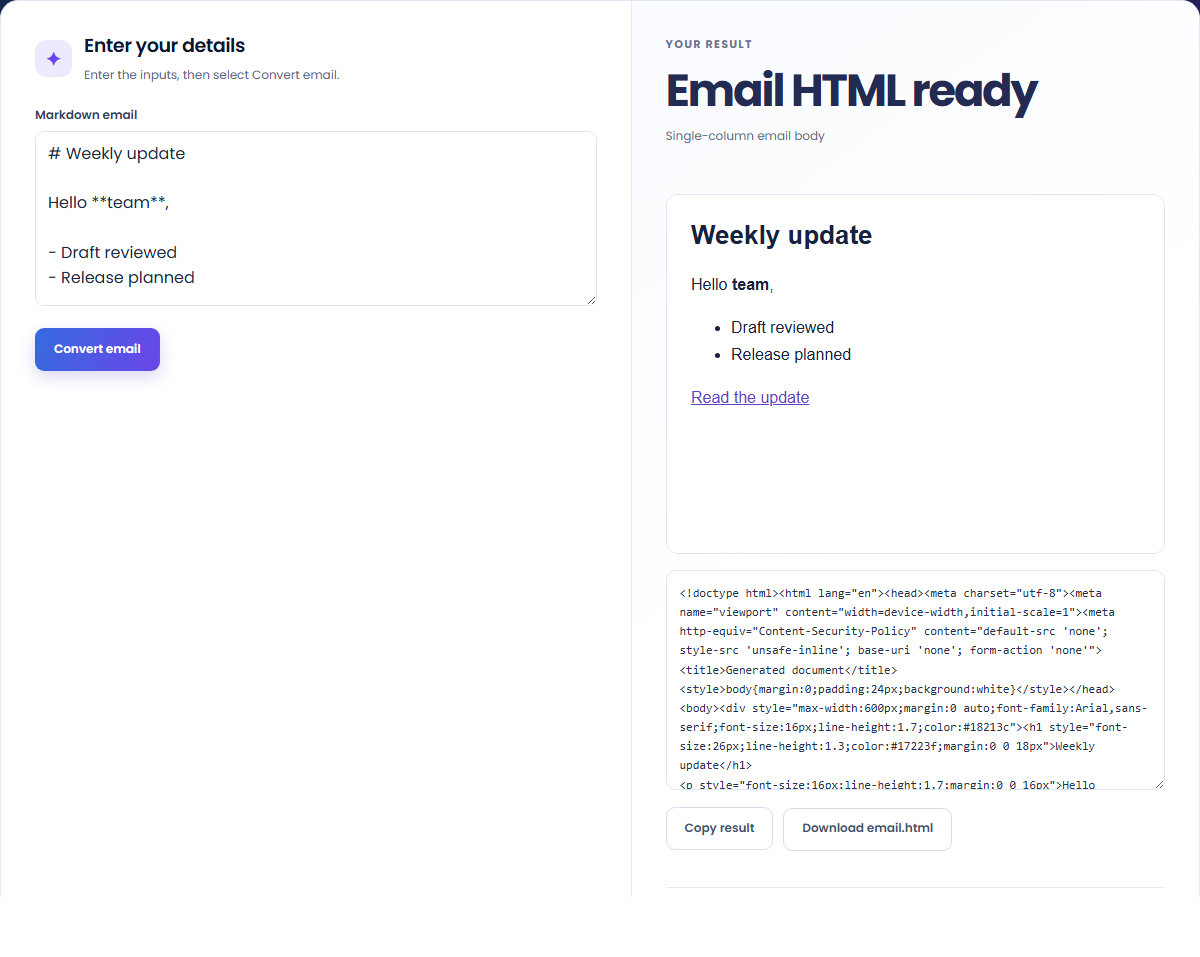
Prepare a text-focused email body for a separate sending workflow.
Write the update as Markdown, then convert its heading and list into a simple HTML body. Sending remains a separate step.

Convert paragraphs, emphasis and links without designing a multi-column campaign. Review each link before sending.

Inspect the generated inline styles before using your sender's HTML import. The browser preview does not measure client-specific rendering or deliverability.

Review the generated source and preview before importing the document into a separate email workflow.
Email HTML ready means the page generated the HTML document. It does not mean a message has been sent, delivered or verified in Gmail or Outlook.

Use the clients your readers actually use to check the message after importing the generated HTML.
Email clients can handle the same HTML differently. Test a real message with your sender and the clients your readers use.
The Markdown input is limited to 100,000 characters. Remote images and active content are omitted. This converter supplies HTML only; it does not send mail, assess deliverability or confirm rendering across Gmail and Outlook.

Write Markdown, update the rendered preview and download the Markdown or HTML when it is ready.
Open tool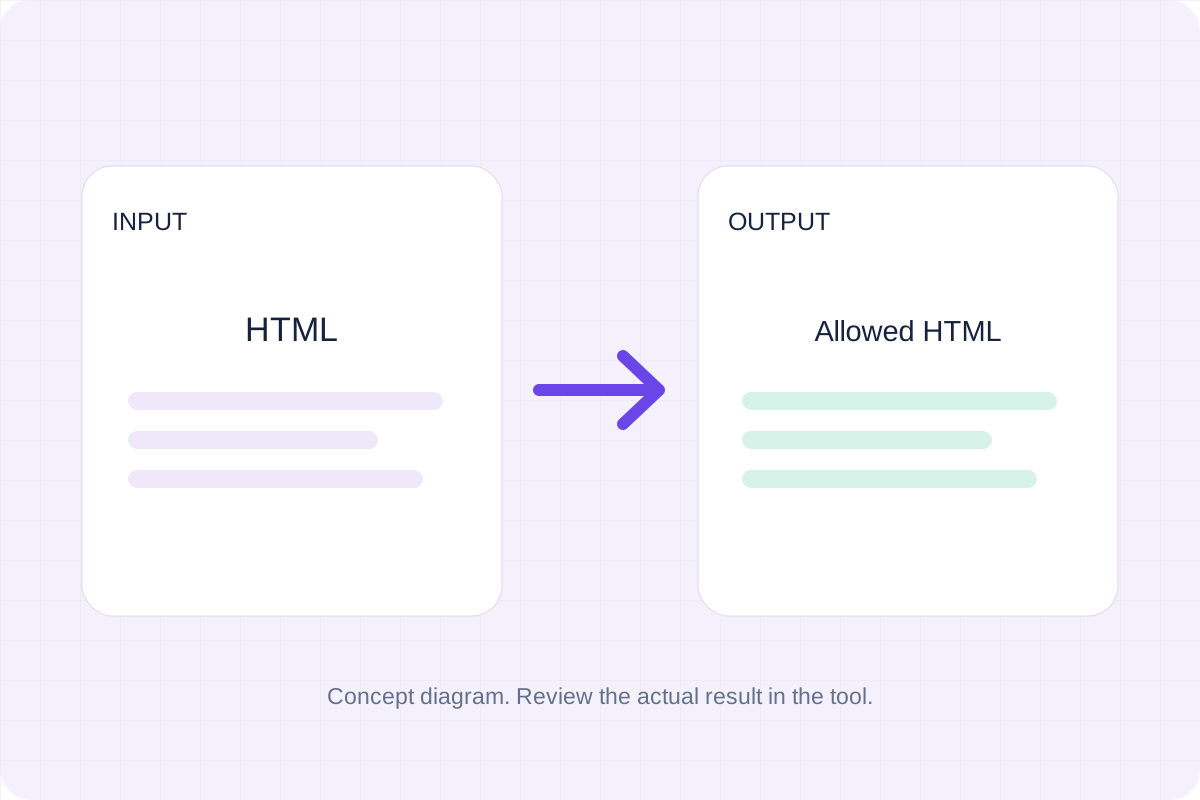
Remove scripts, event handlers and unsupported markup from basic HTML. Review the cleaned fragment and a contained preview.
Open tool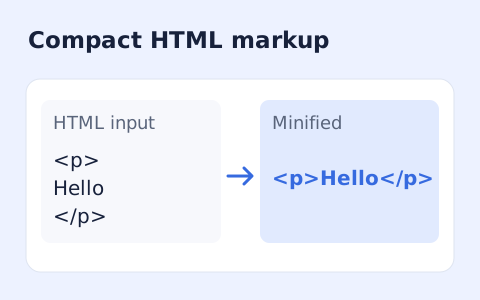
Minify HTML fragments or documents locally while preserving script, style, pre, and textarea content.
Open toolChoose another tool for your next calculation, conversion, or text task.
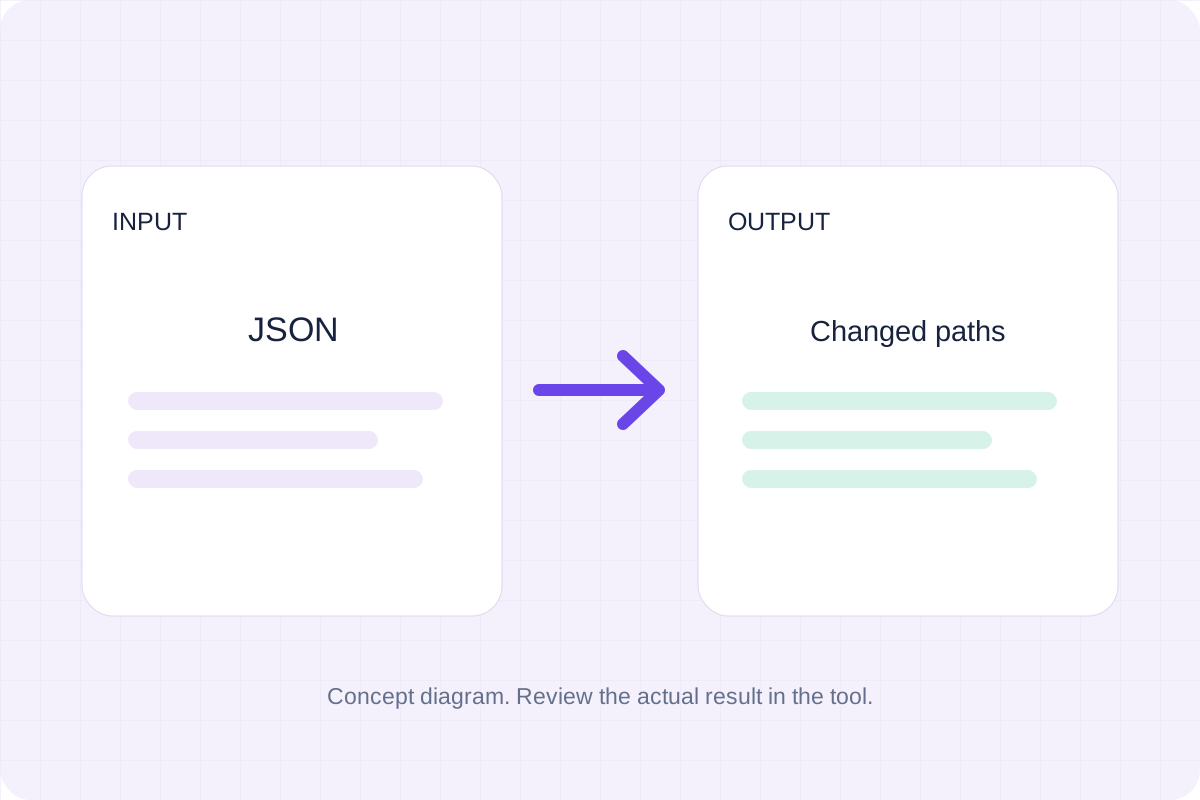
Compare two JSON values by structure. See changed paths without treating object key order as a difference.
Open tool
Check CSV quoting and consistent column counts, then review the record count and selected delimiter.
Open tool
Create a newly encoded PNG, JPEG or WebP from a local image and remove its original embedded metadata.
Open tool
Convert numbered SRT cues into a WebVTT file with dot-separated milliseconds and plain subtitle text.
Open toolTurn Markdown into a simple HTML email with inline styles. Preview the body and download the HTML for your email workflow.
Answers about using Markdown to HTML Email Converter and understanding its results.
No. Download the HTML and use your own email sending tool.
No. Email clients handle HTML differently; send a test email before using the output.