
Word Frequency Counter
Analyze word counts and term frequency locally with Unicode aware word matching.
Open toolTurn pasted text into a word cloud online, with no sign-up. Choose ignored words, a maximum word count and a palette, then download the frequency-based PNG.
Enter the inputs, then select Generate word cloud.
Result will appear here
The generator counts case-folded letter and number words, filters ignored terms, and places the most frequent remaining words at weighted sizes on a canvas.
Words that do not fit can be omitted, and the result lists those placed. The downloadable PNG shows frequency through word size; it does not infer topics, sentiment, or meaning.
If no usable words remain, review the source and ignore list rather than increasing the maximum alone.

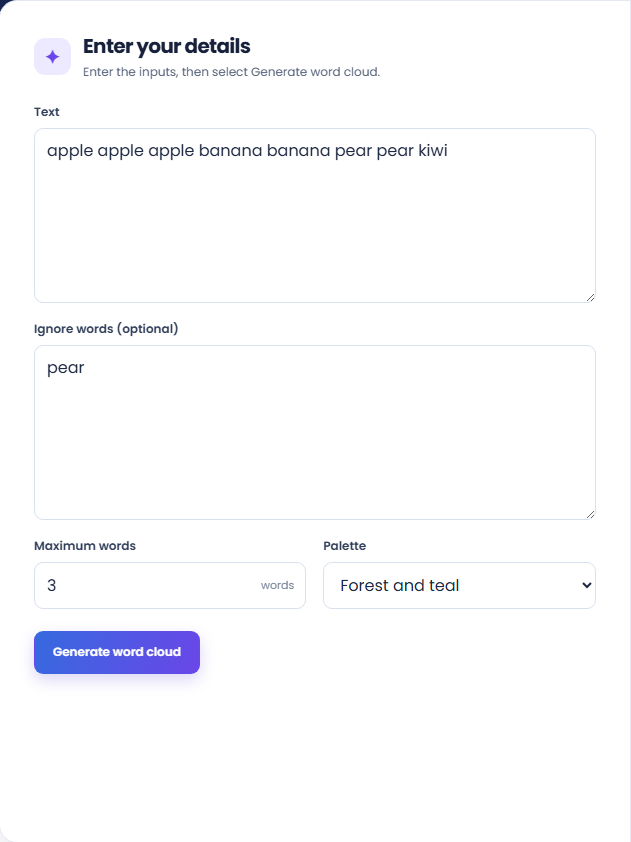
Paste text, define ignored words, and choose the maximum displayed words and palette.
Paste the text, edit the space- or comma-separated ignore list, choose a whole-number maximum word count, and select the violet/blue or forest/teal palette. Use a representative passage rather than an unrelated mixed export.
Run the generator and inspect the placed-word total and cloud image. The supporting rows show the input word count and output dimensions for this generated sample.
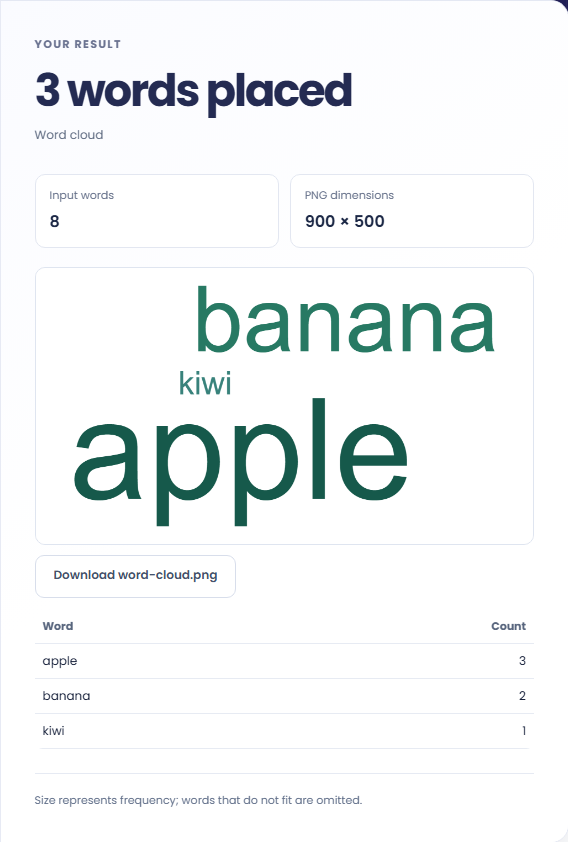
Read the frequency list and omitted-word note, then download word-cloud.png if the selection suits your purpose. Word size reflects frequency, not meaning. Fewer or shorter words can improve fit in the canvas.
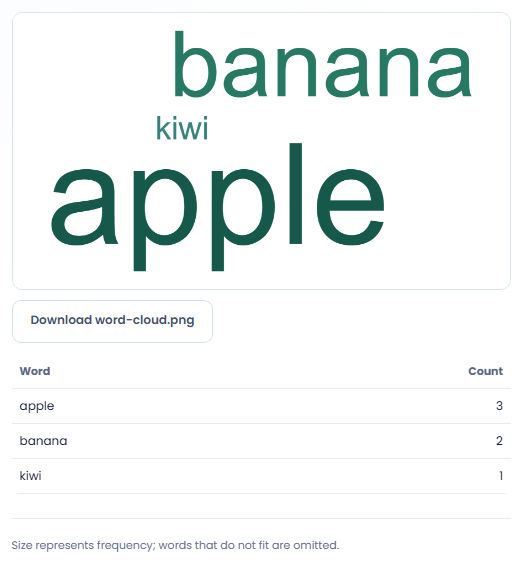
Use a word cloud to inspect visible word frequency rather than to summarize meaning.
Create a cloud from a document to identify terms worth checking in the text itself. A repeated word can be a topic term, a name, or boilerplate. Read its surrounding passages before treating its visual prominence as a meaningful conclusion.

Use the downloaded image as a prompt in an editorial or workshop discussion. Keep the source scope and ignored words with the image. Without that context, viewers may infer that the displayed terms represent a broader collection than the supplied text.

Generate clouds from the same passage before and after editing, keeping exclusions and settings equal. Use frequency counts for the comparison as well as the image. Changes in placement alone should not be interpreted as a change in the importance of a concept.

Read word size as frequency after filtering rather than as a measure of meaning or sentiment.
Words are selected by frequency after filtering, with alphabetical tie handling. Terms in the current editable ignore list are excluded, and tokens longer than forty Unicode code points are omitted.
Placement is bounded by the canvas and available space. A missing word can be filtered or fail to fit; the cloud is not a sentiment analysis, phrase extractor, or semantic summary.

Review the source passage, ignored terms, and visible word list before downloading the cloud.
If no usable words remain, review the source and ignore list rather than increasing the maximum alone. The input needs letter or number tokens that survive filtering to create a meaningful cloud.
The ignore field is limited to 10000 characters. For exact term totals or text structure, use the frequency counter or analysis tool alongside the image rather than reading precise counts from word size.

Analyze word counts and term frequency locally with Unicode aware word matching.
Open tool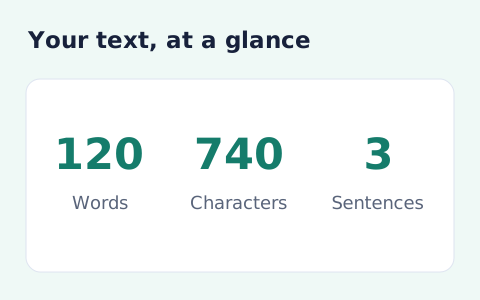
Analyze pasted text locally with word, sentence, paragraph, line, and character statistics.
Open tool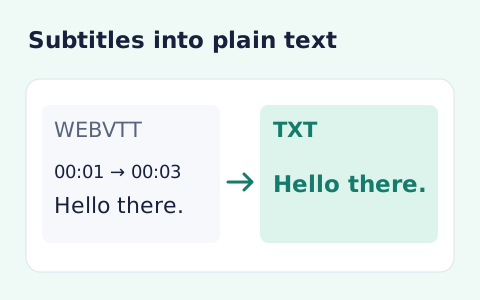
Extract subtitle text from a WebVTT file without timestamps or cue markup.
Open toolChoose another tool for your next calculation, conversion, or text task.
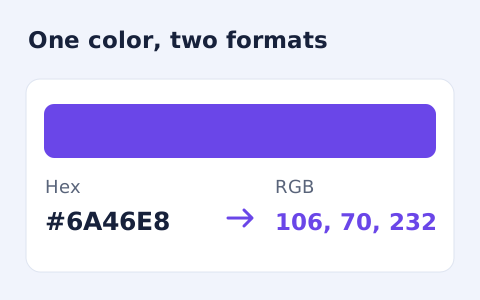
Convert #RGB or #RRGGBB colours into CSS rgb() values and individual red, green, and blue channels.
Open tool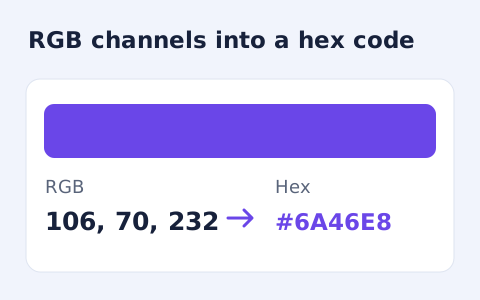
Convert RGB channel numbers into a six-digit hexadecimal CSS colour and preview it.
Open tool
Create an ICO and common PNG favicon sizes from a raster image.
Open tool
Convert a WebP image into a downloadable multi-size ICO file.
Open toolPaste text, define ignored words, and choose the maximum displayed words and palette.
Answers about using Word Cloud Generator and understanding its results.
Yes. Edit the ignore-words list before generating.
No. Word size represents frequency in the input text.
No. The layout omits words that do not fit. Check the placed-word list and try fewer or shorter words if needed.
The generated PNG is 900 by 500 pixels. The selected palette affects its word colors.