
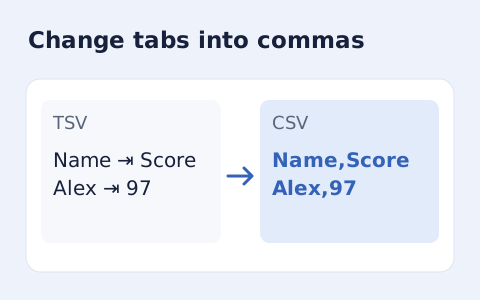
TSV to CSV Converter
Convert tab-delimited records into quoted CSV without losing multiline cells.
Open toolRead pasted CSV in an online table preview. Choose the delimiter and header setting, inspect row and column totals, and review up to 200 data rows as text.
Enter the inputs, then select View CSV.
Result will appear here
The viewer parses quoted records as string cells with your delimiter and header choice, then displays up to 200 preview rows.
A scrollable table displays up to 200 data rows while the total row count is shown separately. The preview does not execute cell formulas or embedded markup.
Records must have consistent column counts.

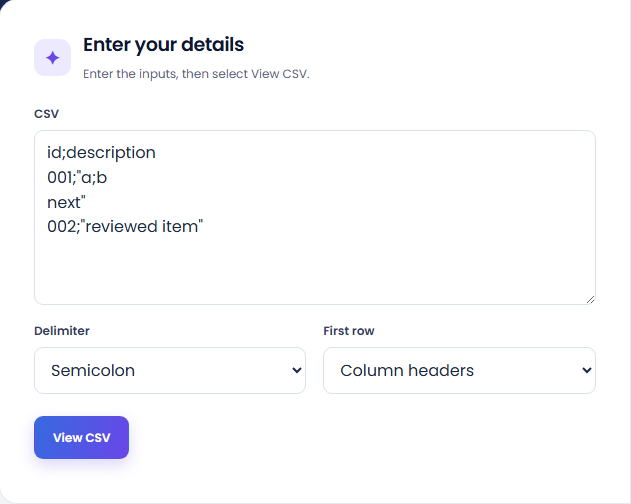
Paste CSV, choose the delimiter, and state whether the first row contains headers.
Paste the CSV source, choose detection or its actual delimiter, and select whether the first row contains headers or data. Preserve quoted commas and multiline cells as represented in the source.
Run the viewer and inspect the total data-row count, column count, and shown-in-preview total. The parser requires consistent row widths and keeps cells as text rather than converting their types.
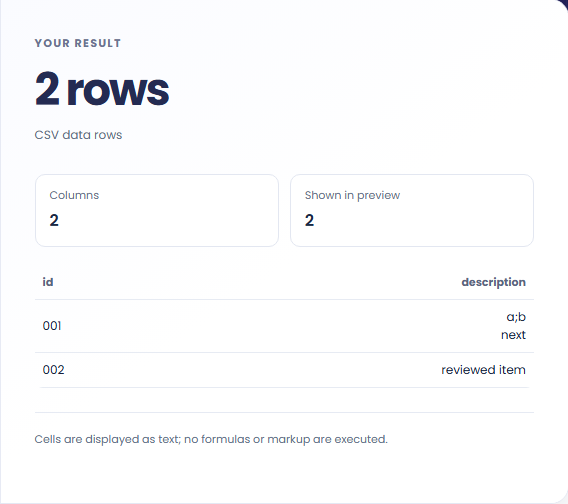
Read the scrollable table and its column labels. The preview shows at most 200 data rows; a longer total does not mean every row is visible. Formulas and markup are displayed as text, not executed.
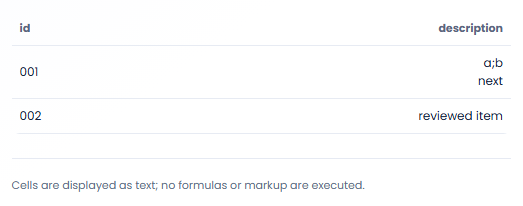
Inspect table structure before using the data in a separate import or editing workflow.
Inspect a CSV before passing it to another application to check that headers and values fall into the intended columns. Then use the destination schema to review field meanings. A correctly parsed rectangle does not guarantee a successful import.

Try the documented delimiter when a table appears to have only one column or an unexpected number of fields. Automatic detection is based on a sample, so an explicit selection can help test whether the source structure was interpreted as intended.

View records containing commas or newlines inside quoted cells to distinguish cell content from separators. Comparing those cells with the source is often clearer than reading raw CSV lines, where a quoted newline can visually resemble a new record.

Distinguish the displayed preview from the parsed row total when exploring a larger CSV.
Keep a dataset to no more than 5000 data rows and 100 columns for this workflow. Only the first 200 rows are displayed. The total row statistic and displayed row count describe different parts of the review.
Values remain text rather than being automatically converted into numbers or dates. This preserves their displayed spelling here but does not control how another importer will interpret them.

Confirm the delimiter, header option, and record structure before interpreting an unexpected table.
Records must have consistent column counts. If parsing fails, inspect quotation marks and separators near the affected record, and confirm the selected delimiter matches the source export.
The viewer does not sort, edit, or filter the dataset. Correct the original source elsewhere and reload it, or use a conversion tool when the actual task is changing the input format.

Convert tab-delimited records into quoted CSV without losing multiline cells.
Open tool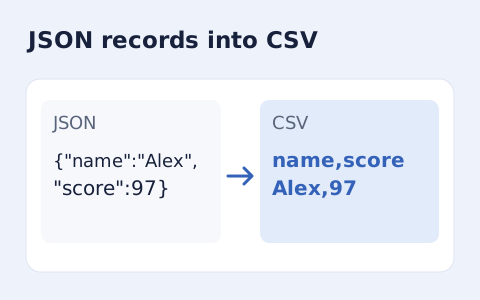
Convert an array of JSON objects into CSV with a union of column names.
Open tool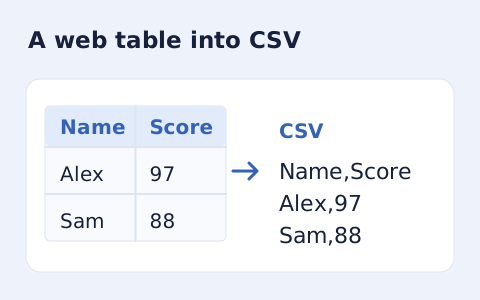
Extract an HTML table into CSV, expanding row and column spans.
Open toolChoose another tool for your next calculation, conversion, or text task.

Plan a dated meeting across IANA time zones and check typical weekday office hours.
Open tool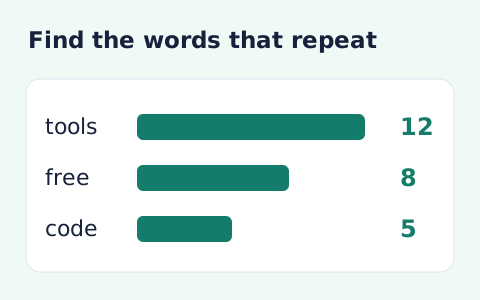
Analyze word counts and term frequency locally with Unicode aware word matching.
Open tool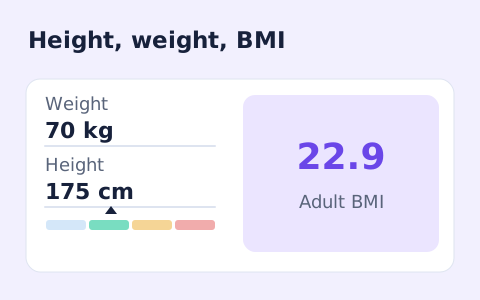
A free adult BMI calculator with metric inputs, a clear BMI category, and the calculation shown.
Open tool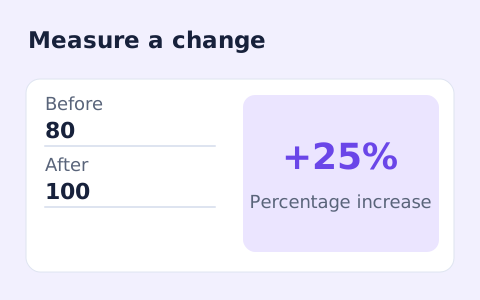
Calculate percentage change and absolute difference between a positive starting value and a new value.
Open toolPaste CSV, choose the delimiter, and state whether the first row contains headers.
Answers about using CSV Viewer and understanding its results.
No. Cells stay strings, preserving leading zeros and long identifiers.
The preview is capped for readability; the total count is shown above the table.
Yes. Choose comma, semicolon, or tab if automatic detection does not match the source.
Choose Data row. The viewer supplies generic column labels and retains the first record as data.