
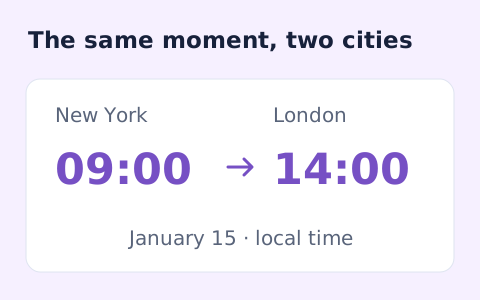
Timezone Converter
Convert dated local times between IANA zones while handling daylight saving transitions.
Open toolPlan one meeting across time zones using its date and duration. Compare local start and end times, then review a fixed weekday office window; calendars and personal availability are not checked.
Enter the inputs, then select Plan meeting.
Result will appear here
The planner resolves the organizer start time, adds the chosen duration, and displays both endpoints in every selected IANA zone.
The office-hours marker checks weekdays from 09:00 to 18:00 on one local date. It does not check holidays, personal availability, calendars, or working-hour preferences.
Duration must be an integer from 1 to 1440 minutes.

Set the organizer time, duration, and participant timezones before comparing local meeting times.
Choose the organizer local date-time and IANA zone, duration in whole minutes, participant zones one per line, and repeated-time handling. Check that the participant list refers to locations rather than ambiguous abbreviations.
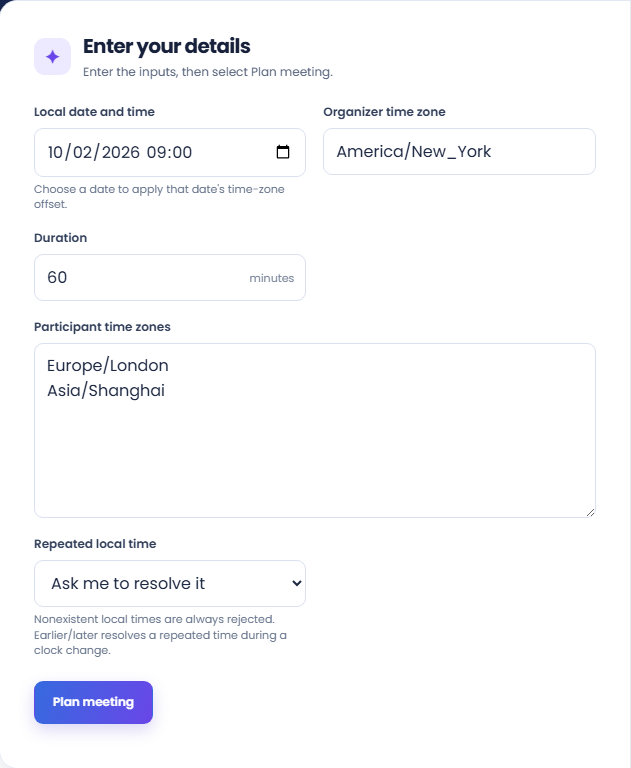
Run the planner and inspect the organizer-plus-participant zone total. The supporting UTC start and duration describe the single meeting interval projected into every unique listed zone.
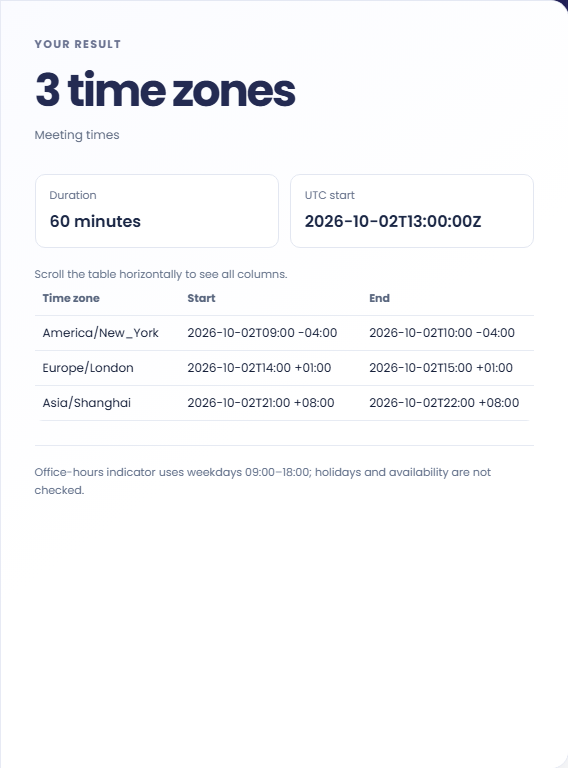
Read dates, offsets, and start/end times in the table. The office-hours marker uses weekdays 09:00–18:00 on one local date. It checks neither holidays nor personal availability and does not book a calendar event.
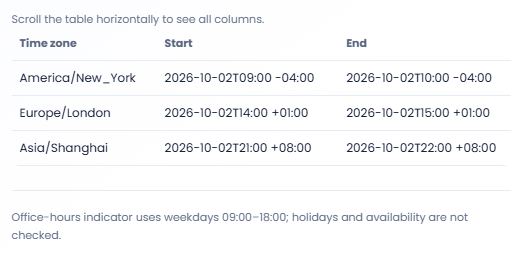
Review one proposed meeting across locations, then decide whether to adjust its start.
Compare a proposed call across the team locations before sharing it. Look for participants whose local date or end time is inconvenient. The result supports a discussion; it does not reserve calendar time or know which people are actually available.

Increase the duration for a workshop and inspect the full interval in each zone. A time that works for a short call may run beyond the generic office window for a longer session, even when the start remains unchanged.

Test the intended date when participants work in locations with different daylight saving transitions. Recheck another date when discussing a recurring meeting. One converted occurrence does not establish the local time of every later occurrence in the series.

Compare each participant’s date and start/end times before treating the office-hours flag as a useful scheduling cue.
The flag checks weekdays from Monday to Friday and a 09:00 to 18:00 window. The whole meeting must fit within that window on one local date.
Holidays, personal schedules, shifts, and actual calendar conflicts are not included. Treat the flag as a fixed comparison rule rather than a participant availability or meeting acceptance result.

Review the organizer zone, duration, and participant list before sharing a proposed meeting time.
Duration must be an integer from 1 to 1440 minutes. The participant list accepts up to 20 distinct zones in addition to the organizer, so remove unintended duplicate or unrelated entries.
Repeated organizer times require an explicit ambiguity decision, while nonexistent local times are rejected. Check the organizer timezone and date before changing participants to solve a source time error.

Convert dated local times between IANA zones while handling daylight saving transitions.
Open tool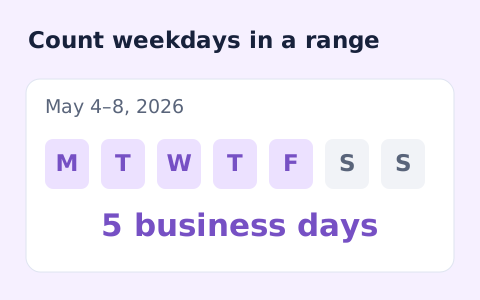
Count weekdays between two dates, including both endpoints and excluding Saturdays and Sundays.
Open tool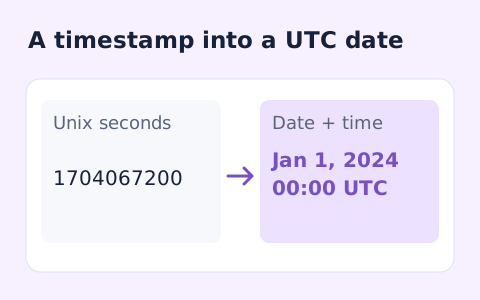
Convert signed Unix timestamps and ISO date-times with explicit time-zone offsets.
Open toolChoose another tool for your next calculation, conversion, or text task.
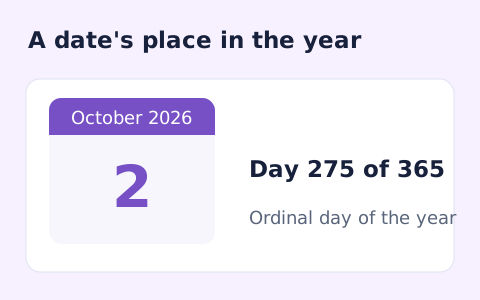
Find whether a date is day 1 through 365 or 366 of its calendar year.
Open tool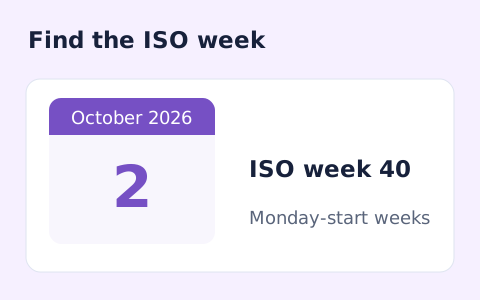
Calculate a date's ISO 8601 week number, week-year, and weekday.
Open tool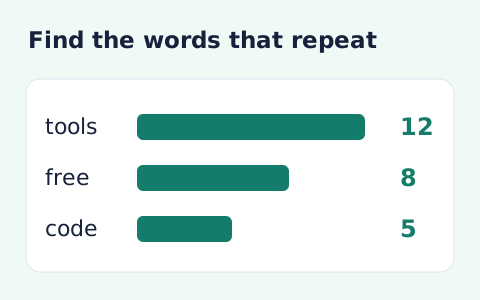
Analyze word counts and term frequency locally with Unicode aware word matching.
Open tool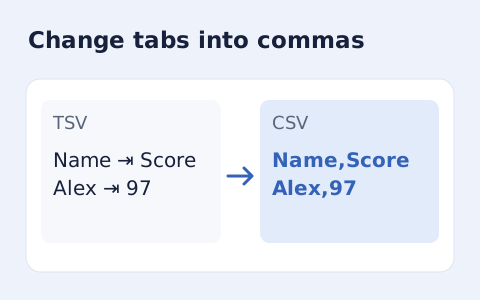
Convert tab-delimited records into quoted CSV without losing multiline cells.
Open toolSet the organizer time, duration, and participant timezones before comparing local meeting times.
Answers about using Time Zone Meeting Planner and understanding its results.
No. It displays times for planning and does not access calendars.
Yes. Each row includes the local date and offset for both endpoints.
Up to 20 participant time zones can be supplied. The organizer zone is included, and duplicates are removed.
No. It is a fixed weekday time-window check. Confirm calendars, holidays, and individual working hours separately.