WebP to ICO Converter
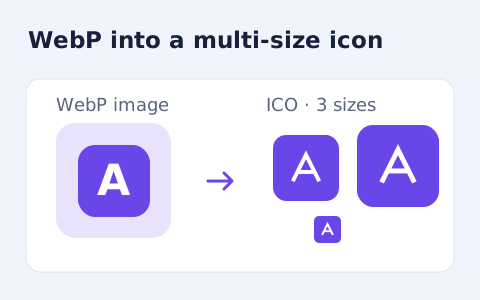
Convert a WebP image into a downloadable multi-size ICO file.
Open toolCreate website favicons online from a PNG, JPEG or WebP image. Choose contain or crop-to-square fitting and download ICO, PNG icons, a manifest and HTML links in one ZIP.
Enter the inputs, then select Generate favicons.
Result will appear here
The generator draws a raster source into square icon canvases with contain or cover fitting and packages ICO, PNG, manifest, and link-tag files in a ZIP.
The downloaded ZIP contains installation material for a site. Review its paths and edit the example manifest name and application settings before deployment.
Files must stay within the supported 10 MB and image dimension limits.
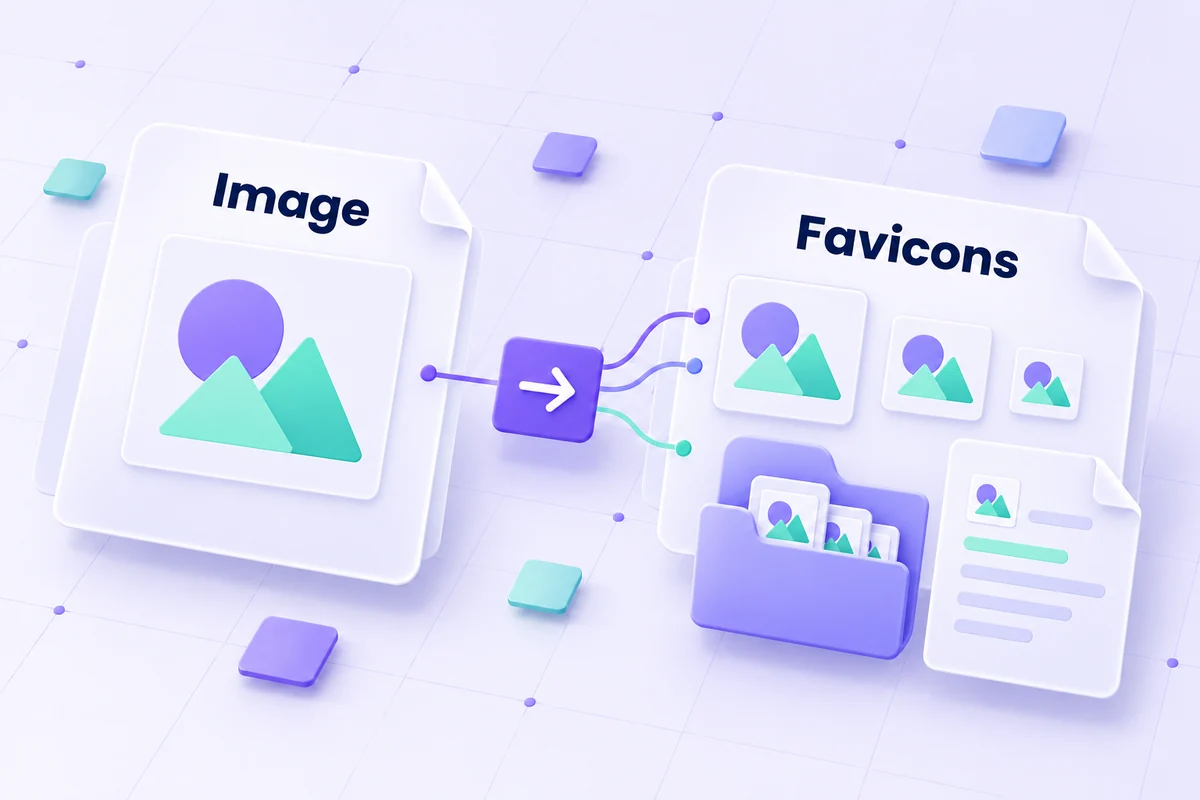
Choose a PNG, JPEG, or WebP image and a fit mode for the square icon outputs.
Choose a PNG, JPEG, or WebP source, then select contain or cover fitting. Check source file size and dimensions. Contain keeps the full image; cover fills the square and can crop edges.
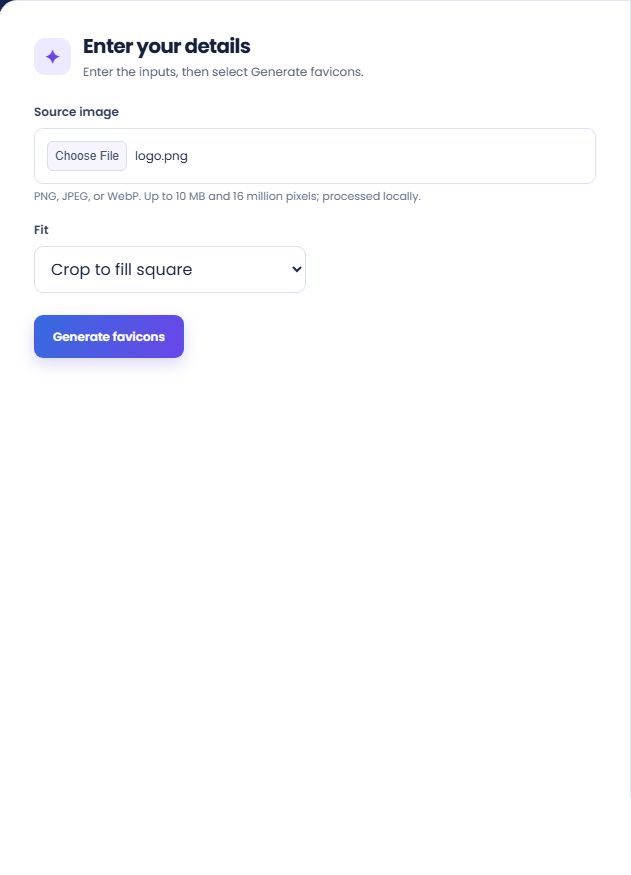
Run the generator and inspect the icon preview. The result reports the source dimensions and package file total, so you can confirm which input produced the files.
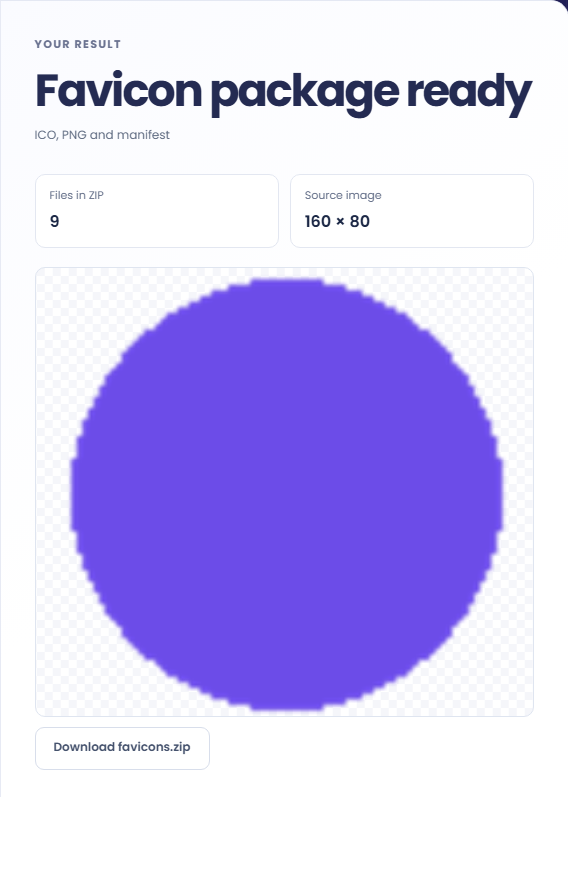
Download favicons.zip and inspect the ICO, PNG files, manifest, and HTML links. Edit the example application manifest and review deployment paths before installing the package. Check the smallest icon sizes for detail loss.
Build an icon package from an existing raster design, then review it at small sizes.
Generate the related icon files when a site has a finished raster mark but no favicon assets. Check the smallest outputs separately from the preview, since details that look clear at a larger size can disappear in a browser tab.
Try contain and cover for a rectangular source image to see which treatment keeps its useful content. Transparent padding and cropping solve different layout problems. Choose deliberately rather than assuming a fully filled square always produces a better icon.
Share the ZIP with the person integrating site metadata, together with the intended application name and deployment paths. The included examples help locate the required references, but they still need to be adapted to the destination site and directory structure.
Inspect the small icon previews and archive contents before adapting the installation files to your site.
The archive contains six PNG sizes, a PNG backed ICO containing 16, 32, and 48 pixel images, a web manifest, and an HTML link snippet. These are generated files rather than a deployed configuration.
The manifest and snippet use example names and root asset paths. A tool or prototype mounted under a folder needs references reviewed for that actual deployment.
Choose a clear source image and check the fit, file limits, and site-specific manifest values before publishing icons.
Files must stay within the supported 10 MB and image dimension limits. Renaming an unsupported file does not change its image format. Animated raster input is represented by a decoded frame, not an animated icon set.
Upscaling cannot restore detail absent from the original image. If a small icon is unclear, simplify the source design or adjust the fit instead of relying only on a larger exported size.

Choose another tool for your next calculation, conversion, or text task.
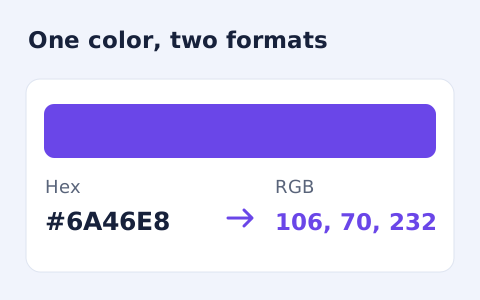
Convert #RGB or #RRGGBB colours into CSS rgb() values and individual red, green, and blue channels.
Open tool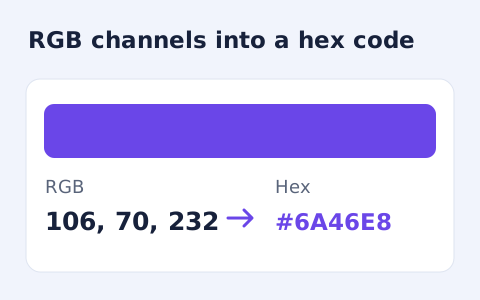
Convert RGB channel numbers into a six-digit hexadecimal CSS colour and preview it.
Open tool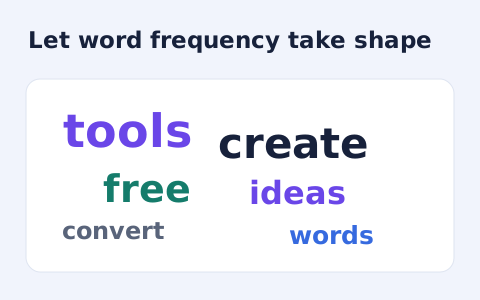
Create a downloadable word cloud from the most frequent terms in your text.
Open tool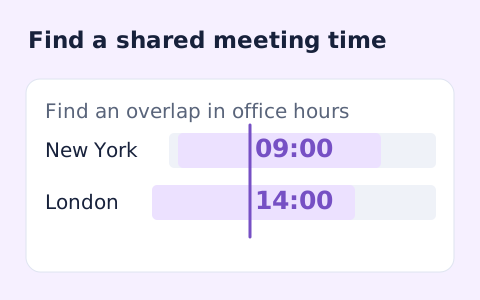
Plan a dated meeting across IANA time zones and check typical weekday office hours.
Open toolChoose a PNG, JPEG, or WebP image and a fit mode for the square icon outputs.
Answers about using Favicon Generator and understanding its results.
Extract the ZIP into your site's public root and use the supplied HTML link tags. Edit the manifest for your application.
Contain keeps the full source within a square with transparent padding. Cover fills the square and can crop its edges.
It contains example application details. Edit those values and review the icon paths before using it.
Use an actual PNG, JPEG, or WebP within 10 MB, 16 million decoded pixels, and 8,192 pixels per side. A renamed file does not change its underlying format.