
Online Text Formatter
Format pasted text with line trimming, horizontal whitespace cleanup, blank-line handling, and case conversion.
Open toolCompare two text passages online with a word or line diff. Review highlighted additions and removals locally, then read the surrounding text to understand each change.
Enter the inputs, then select Compare texts.
Result will appear here
The comparison normalizes line endings and marks additions and removals after comparing either word tokens or lines in a bounded worker.
The totals count diff tokens for the chosen mode. The result explains textual changes rather than judging meaning, resolving merge conflicts, or storing revision history.
Both fields are limited to 50000 characters, and both cannot be empty at once.

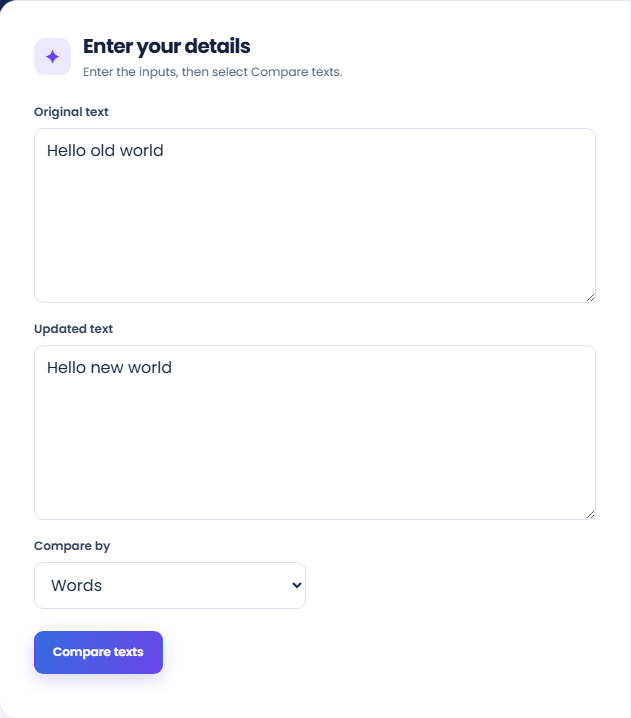
Paste the original and revised text, then choose word or line comparison.
Paste the original and updated texts into their fields and select words or lines. Preserve the same scope in both versions. Either field can be empty, but at least one must contain text.
Compare the versions and inspect the Identical or Different result. Read the highlighted additions and removals in context; unchanged passages remain visible around the edit.
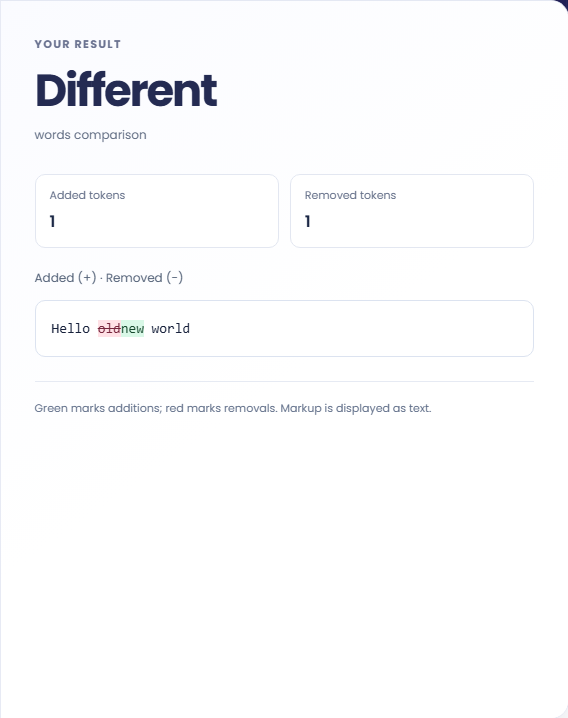
Use the added and removed token counts with the selected mode, rather than as a measure of meaning. Markup remains text. Review the changes before moving them to your document or source file.
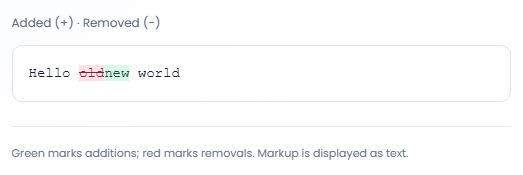
The comparison highlights literal edits that you can inspect in their surrounding text.
Compare a draft paragraph with an edited version to find wording that was added or removed. Read the whole sentence after locating the edits, since the highlight cannot tell you whether the revision preserves a claim or changes its meaning.

Use line comparison for short configuration excerpts where each line carries a setting. Keep secrets out of the sample and retain the same section on both sides. The result shows literal differences rather than validating the configuration syntax.

Compare apparently identical text when copied content behaves differently in another system. Visible edit markers can expose spaces or line changes. This tool normalizes carriage return line endings, so it cannot diagnose every difference in the original file bytes.

Read the highlighted changes in the selected comparison mode rather than treating every marked token as a character.
Added and removed totals count comparison tokens, whose meaning depends on word or line mode. They should not be labeled as a fixed count of edited sentences or substantive changes.
Letter case remains significant. The result does not merge similar meanings or assess grammar, and literal markup in the source is displayed as text rather than executed.

Keep the two passages in the intended order and compare shorter sections when a large diff reaches its processing limit.
Both fields are limited to 50000 characters, and both cannot be empty at once. If a large comparison is stopped, compare smaller corresponding sections to make the output easier to inspect.
When a difference seems misplaced, check the selected mode and the pasted scope first. Repeated lines can create several plausible edit alignments, so review the source context as well as the highlighting.

Format pasted text with line trimming, horizontal whitespace cleanup, blank-line handling, and case conversion.
Open tool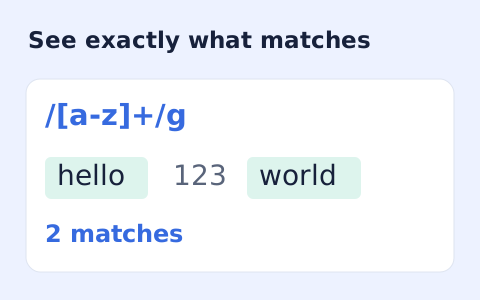
Test JavaScript regular expressions in a separate worker and inspect matches, offsets, and capture groups.
Open tool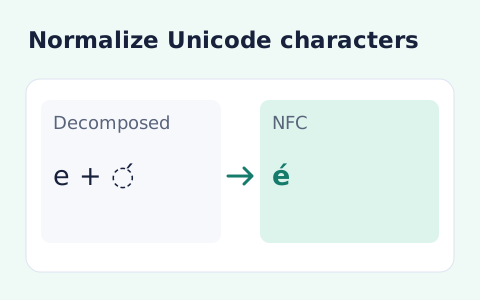
Convert text between the four Unicode normalization forms locally in your browser.
Open toolChoose another tool for your next calculation, conversion, or text task.
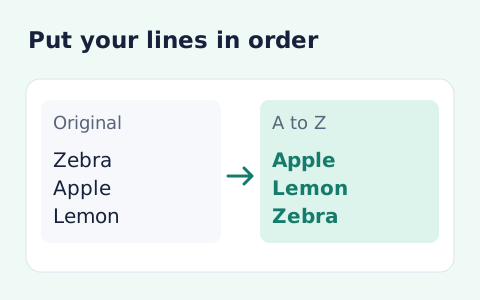
Sort text lines A–Z or Z–A, optionally removing blank and duplicate lines, then copy the result.
Open tool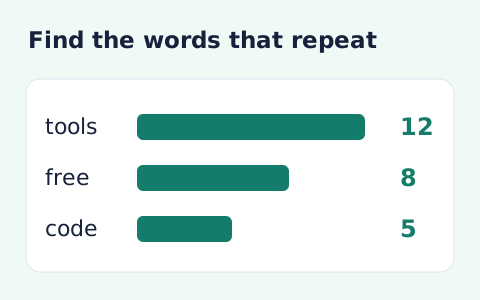
Analyze word counts and term frequency locally with Unicode aware word matching.
Open tool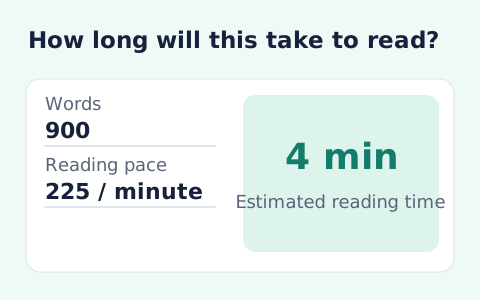
Paste text and estimate reading time from its word count and your chosen reading speed.
Open tool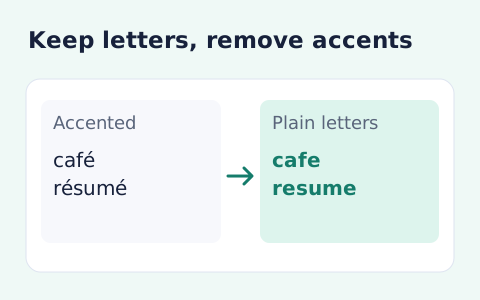
Remove diacritic marks from Unicode text locally while keeping the original letter order and line breaks.
Open toolPaste the original and revised text, then choose word or line comparison.
Answers about using Text Compare and understanding its results.
No. Inputs are shown as text, including any markup.
Yes. At least one input must contain text.
Yes. Letter case remains significant. The comparison normalizes line endings but does not treat differently capitalized text as identical.
No. Its totals describe inserted and removed tokens, including whitespace handling. Read the changed passage to assess meaning.