
Text Compare
Compare two pieces of text locally with additions and removals highlighted by word or line.
Open toolFormat pasted text with line trimming, horizontal whitespace cleanup, blank-line handling, and case conversion.
Enter the inputs, then select Format text.
Result will appear here
The formatter normalizes line endings, trims each line, and applies the selected spacing, blank-line, and letter-case rules.
The output keeps the wording apart from the selected case changes. Indentation is trimmed, so retain the original when leading spaces are meaningful.
Use a nonempty text passage within 100000 characters.
Choose spacing, blank line, and case settings before formatting the pasted text.
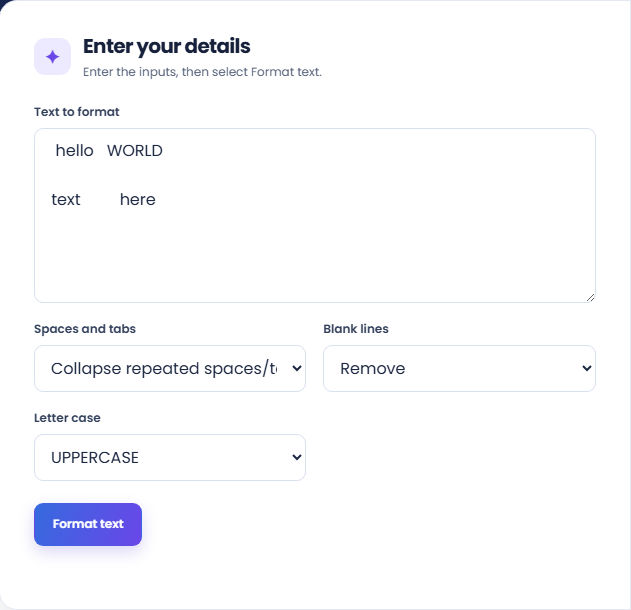
Paste the text, choose whether to collapse internal spaces and tabs, select blank-line handling, and set letter case. Keep a source copy when indentation or original capitalization matters.
Run the formatter and read the output with its line and character totals. Each line is trimmed before the selected spacing, blank-line, and case rules are applied.
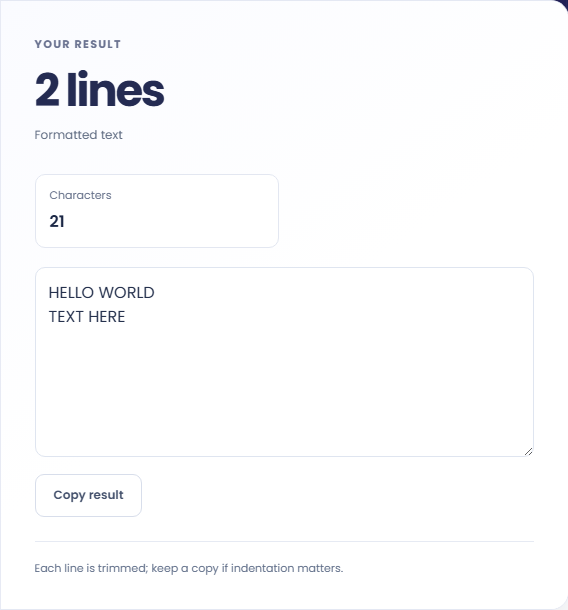
Copy the formatted text when its structure suits the destination. Read the trimming note and inspect acronyms or names after simple title case. Keep internal spacing does not restore trimmed indentation.
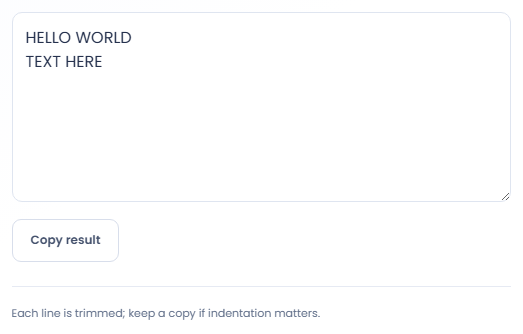
Use a defined cleanup rule when several passages need the same text treatment.
Normalize uneven spaces in a list copied from several sources when indentation is unimportant. Keep blank lines if they separate meaningful groups. For ordering or removing repeated entries, use a line sorting tool rather than expecting formatting to reorganize the list.

Try a case option for a short heading that needs consistent treatment. Read proper names and acronyms afterwards, because the simple title case option lowercases the text before capitalizing letter sequences and does not follow an editorial style guide.

Use the blank line setting on a passage containing unwanted gaps from a copy operation. Check whether any removed gaps marked real paragraph boundaries. A denser output is not automatically a better structure for an article or document.

Inspect the edited passage for places where mechanical spacing or case rules change intentional formatting.
Uppercase and lowercase operate on the text, while simple title case uses a mechanical capitalization rule. The formatter does not recognize brand capitalization, sentence context, or preferred acronym spellings.
Carriage return line endings are normalized. Internal spacing can be retained, but line edge whitespace is always trimmed, so keeping spacing does not produce an unchanged copy of the source.

Keep the original passage available so you can compare meaningful indentation and capitalization after formatting.
Use a nonempty text passage within 100000 characters. If meaningful alignment or indentation disappears, return to the original copy rather than trying to reconstruct it from the formatted result.
Use text comparison to review a substantial cleanup. If you need accent removal or Unicode normalization, select the corresponding tool because those transformations are not included in these formatting choices.

Compare two pieces of text locally with additions and removals highlighted by word or line.
Open tool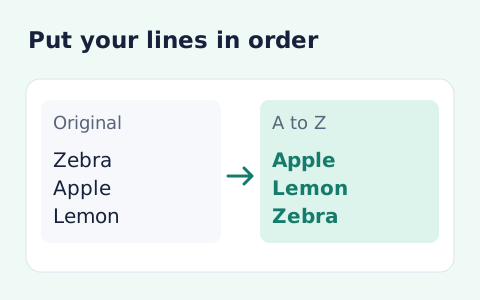
Sort text lines A–Z or Z–A, optionally removing blank and duplicate lines, then copy the result.
Open tool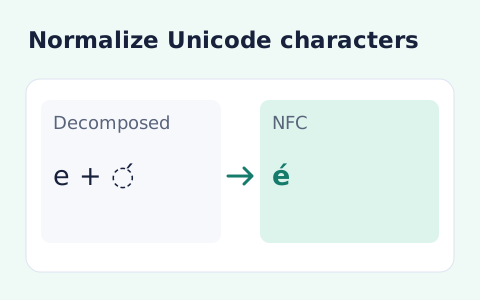
Convert text between the four Unicode normalization forms locally in your browser.
Open toolChoose another tool for your next calculation, conversion, or text task.
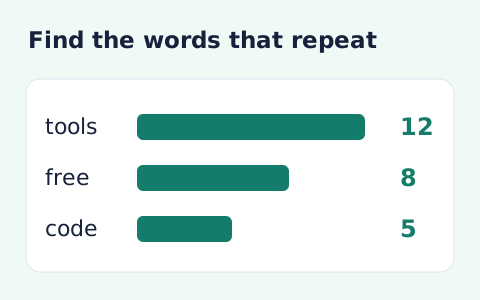
Analyze word counts and term frequency locally with Unicode aware word matching.
Open tool
Paste text and estimate reading time from its word count and your chosen reading speed.
Open tool
Remove diacritic marks from Unicode text locally while keeping the original letter order and line breaks.
Open tool
Analyze pasted text locally with word, sentence, paragraph, line, and character statistics.
Open toolChoose spacing, blank line, and case settings before formatting the pasted text.
Answers about using Online Text Formatter and understanding its results.
It changes spacing and optional letter case only.
This formatter trims each line, so keep a copy if indentation matters.
Yes. Use the blank-line cleanup option, then check whether any removed gaps were meaningful paragraph or list boundaries.
No. It lowercases the text and capitalizes the initial letter of each letter sequence. Review acronyms and language-specific names afterward.