
EXIF Viewer
Inspect supported EXIF, GPS and other metadata in a local JPEG, PNG or WebP image without uploading it.
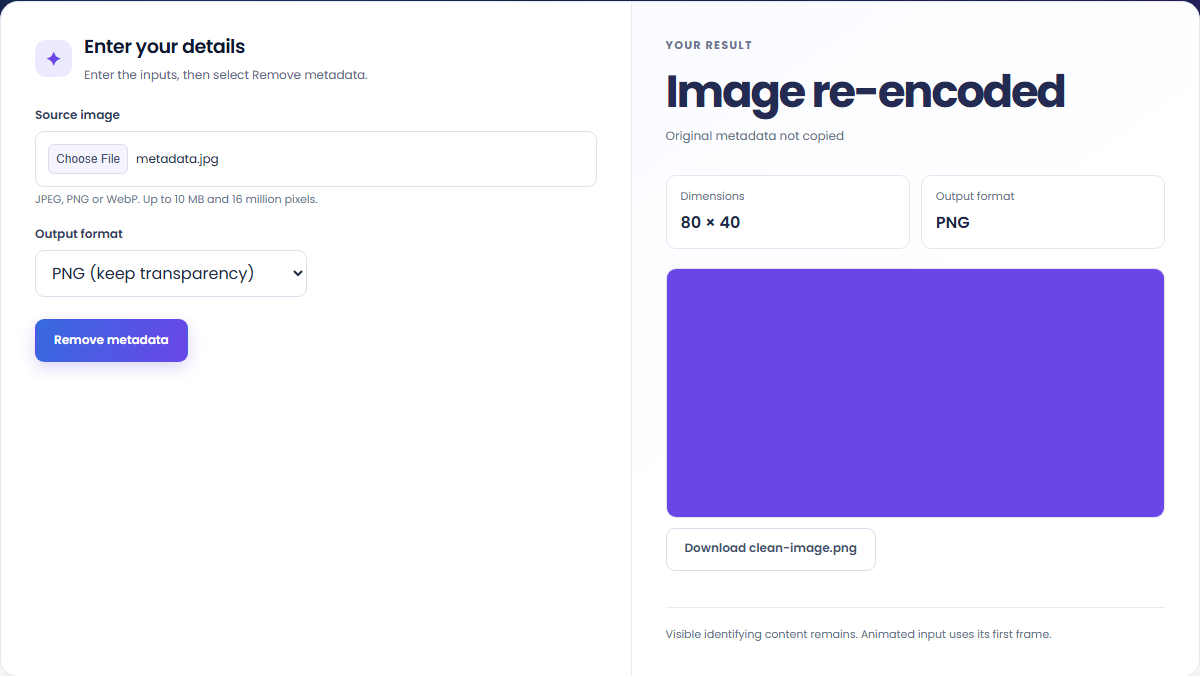
Open toolRemove original EXIF, GPS and other image metadata by re-encoding a local JPEG, PNG or WebP. Choose an output format, review the visible image, and download the new file.
Enter the inputs, then select Remove metadata.
Result will appear here
Decode the source pixels, apply browser orientation and encode a new image from a canvas.
Original EXIF, GPS and other embedded records are not copied. The browser encoder can add basic technical headers. Visible names, faces, watermarks and identifying pixels remain. JPEG/WebP may change pixels, and animated input uses its first frame.
Select a supported source image and output format, then review the re-encoded pixels before downloading the new file.
Choose PNG, JPEG or WebP output. The file must meet the 10 MB and 16-million-pixel limits. JPEG receives a white background.
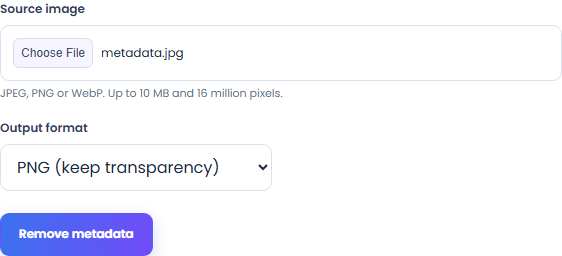
Select Remove metadata to encode a new image from the decoded source pixels. Original EXIF, GPS and other embedded records are not copied; the browser encoder may add basic technical headers.
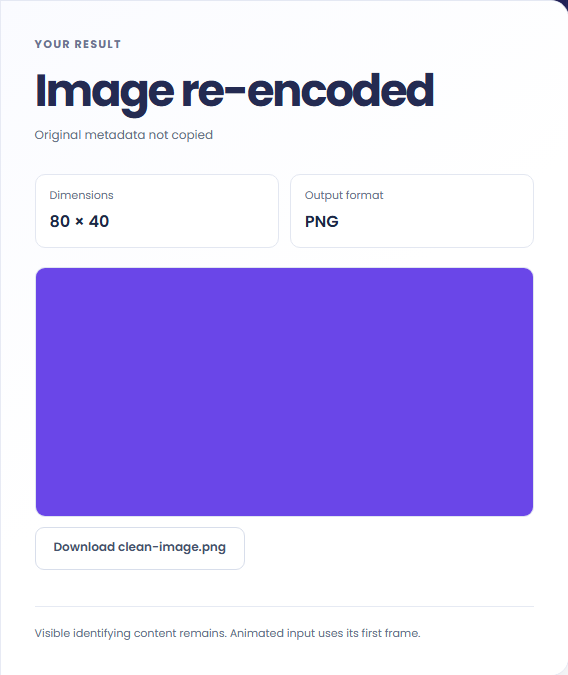
Re-encode the image, review its dimensions and visible content, then download the new file. Inspect its metadata separately if needed.
Prepare a new raster file and inspect both its visible pixels and metadata.
Create a new raster from the decoded pixels rather than copying the source file's embedded records. Review the resulting file with a metadata viewer.

Use PNG or WebP when the source has transparency. JPEG does not preserve an alpha channel and uses the page's white background.

Use the first displayed frame from supported animated raster input. This page does not preserve animation; GIF Resizer is a separate tool.

A new raster file omits original embedded records, while its visible pixels still need their own review.
The result is a newly encoded image. Original embedded metadata is not copied, but the browser encoder can add technical headers and the visible pixels can still identify a person or place.

Check the upload limits and choose an output format that fits the transparency and animation you need.
Source images must be JPEG, PNG or WebP, at most 10 MB, with no more than 16 million pixels or 8,192 pixels on either side. Re-encoding does not redact visible names, faces or watermarks.
PNG and WebP can retain source transparency, while JPEG uses a white background. Animated input produces its first frame only, and JPEG/WebP encoding can change pixels. Review the downloaded image and use a metadata viewer if you need to inspect its new technical headers.

Inspect supported EXIF, GPS and other metadata in a local JPEG, PNG or WebP image without uploading it.
Open tool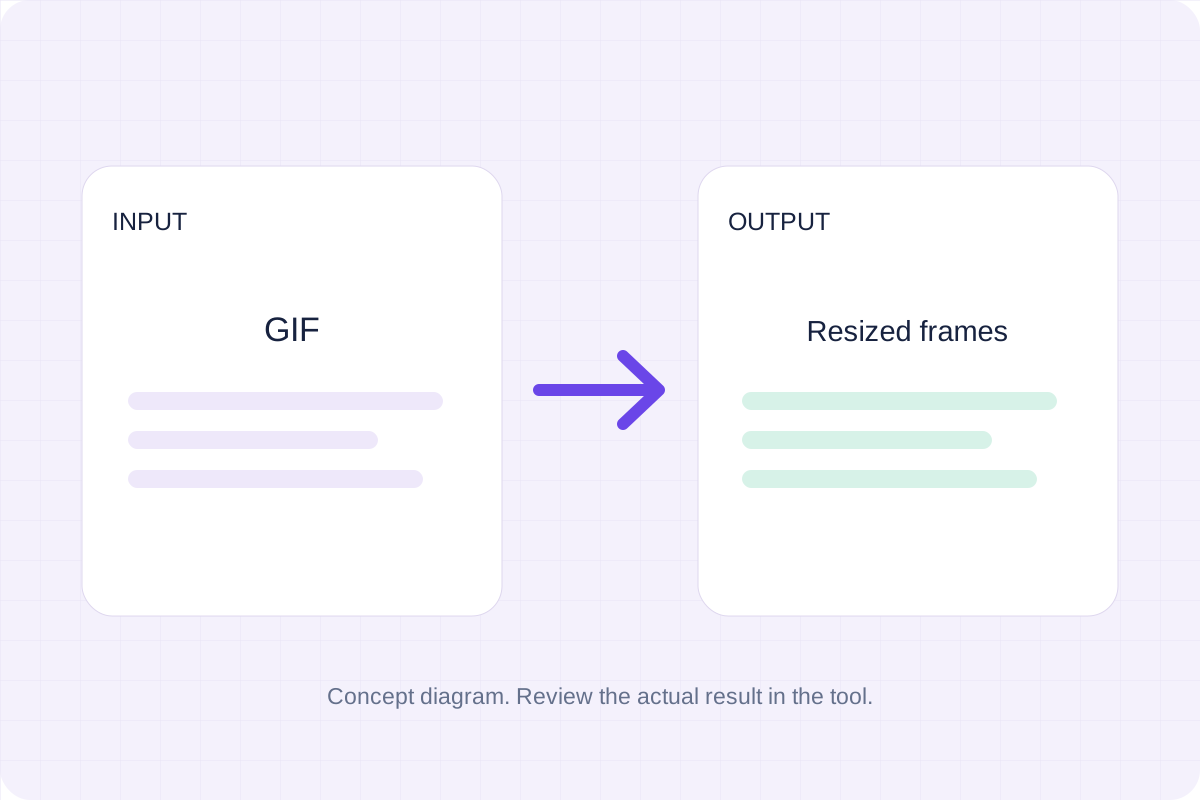
Resize an animated GIF to a target width while keeping its frame sequence and timing. Download the resized GIF.
Open tool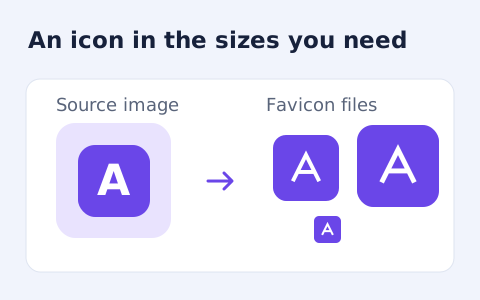
Create an ICO and common PNG favicon sizes from a raster image.
Open toolChoose another tool for your next calculation, conversion, or text task.
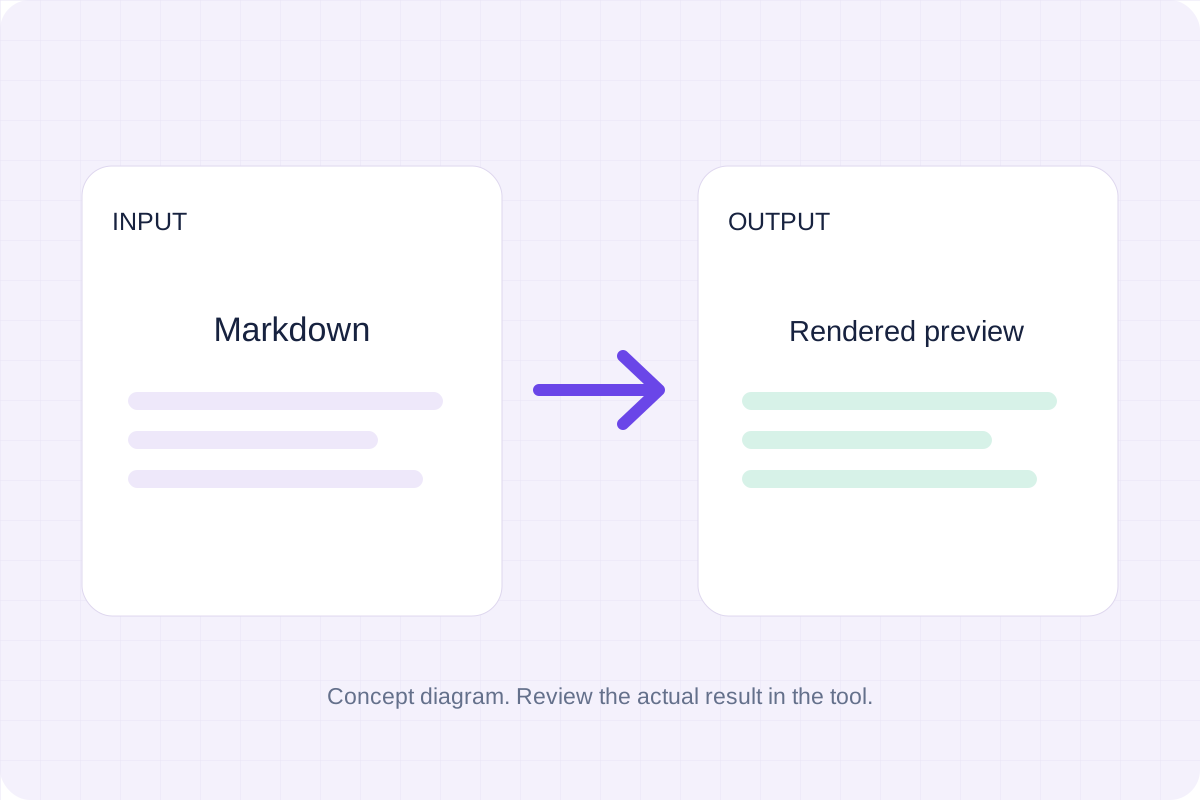
Write Markdown, update the rendered preview and download the Markdown or HTML when it is ready.
Open tool
Compare two JSON values by structure. See changed paths without treating object key order as a difference.
Open tool
Check CSV quoting and consistent column counts, then review the record count and selected delimiter.
Open tool
Remove scripts, event handlers and unsupported markup from basic HTML. Review the cleaned fragment and a contained preview.
Open toolAnswers about using Image Metadata Remover and understanding its results.
No. It removes original embedded records by re-encoding pixels; visible content remains.
PNG and WebP support transparency. JPEG uses a white background.
Create a newly encoded PNG, JPEG or WebP from a local image and remove its original embedded metadata.