
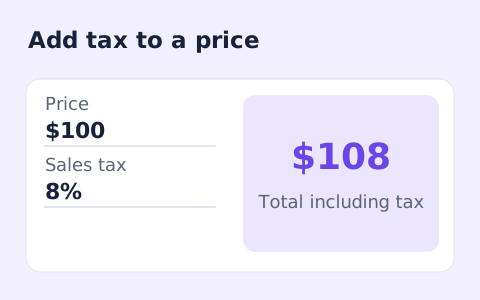
Sales Tax Calculator
Calculate sales tax and the total price from a pre-tax subtotal and a rate you enter.
Open toolAdd or remove VAT using an amount and rate you enter. Review the net price, VAT amount, and gross price together.
Update the inputs to see your result.
Result will appear here
The selected net or gross mode determines how the VAT factor is applied.
For a net input, the amount is multiplied by one plus the VAT rate to obtain gross. For a gross input, it is divided by that same factor to recover net. The difference between gross and net is the VAT amount.
Enter the VAT rate yourself. Tax treatment, exemptions, and invoice rounding depend on jurisdiction.

Choose whether the entered amount is before VAT or already includes it.
Enter the amount and VAT percentage, then choose whether the amount is Before VAT or After VAT. Check the mode before calculating because the same number can represent a net price or an already-taxed gross price.
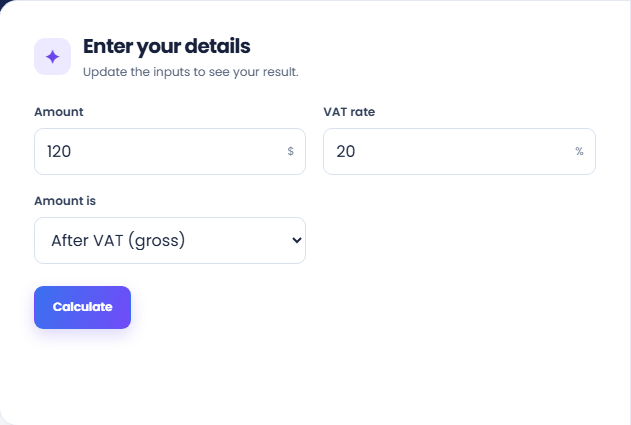
Select Calculate and read the price including VAT. The page multiplies a net input by one plus the rate or divides a gross input by that factor. Removing VAT does not simply subtract that percentage directly from gross.
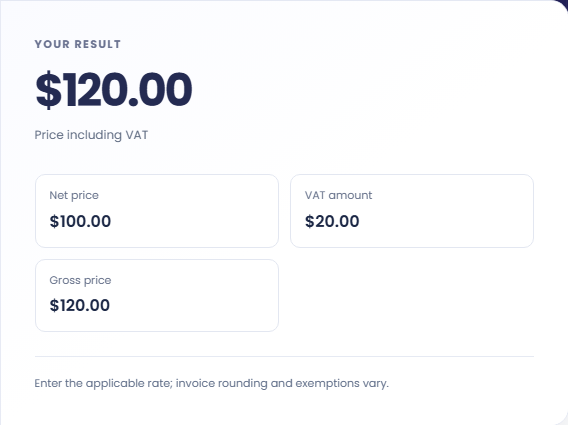
Read Net price, VAT amount, and Gross price together to see how the input was interpreted. Rates, exemptions, tax treatment, and invoice rounding depend on the applicable rules. The form supplies arithmetic for one amount rather than a compliant invoice.
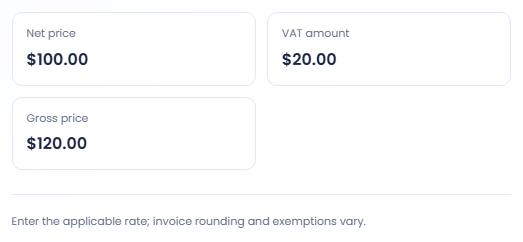
Keep net and gross amounts clearly labelled when moving results into an invoice check.
A hypothetical net amount of $100 at twenty percent becomes $120 gross, including $20 of VAT. Select the before VAT mode for this direction. The example supplies a rate for arithmetic and does not establish tax treatment for a transaction.

Enter $120 with the same twenty percent rate and select the after VAT mode. The net amount is $100 and VAT is $20. Subtracting twenty percent of the gross would use a different basis and would not reproduce this breakdown.

Use one invoice amount with its stated net or gross basis and rate to inspect the arithmetic. For an invoice with multiple rates, examine the relevant lines separately. The form has one rate and does not reconstruct a whole mixed rate invoice.

Read the recovered net amount, tax component, and gross price together.
A VAT inclusive amount contains the net price plus VAT calculated from that net price. The after VAT mode divides by the corresponding factor to recover net, then shows the difference as VAT.
The main result remains Price including VAT even when the input was already gross. Use the labelled breakdown to find the extracted net amount. Displayed money is rounded and does not determine invoice or jurisdiction rules.

Confirm input mode and rate before comparing against an invoice.
Before and after VAT are calculation directions, not tax eligibility choices. If an entered amount is already gross, selecting the net mode adds VAT again. Confirm the amount basis before deciding that the displayed total is wrong.
Exemptions, jurisdiction treatment and invoice rounding can differ from this one amount model. The page does not decide the applicable rate or produce a tax invoice. Keep any real transaction checks tied to the relevant information.

Calculate sales tax and the total price from a pre-tax subtotal and a rate you enter.
Open tool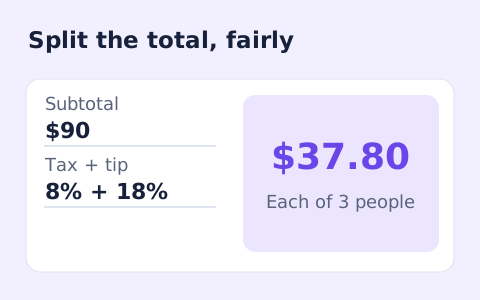
Split a bill among friends using a subtotal, sales tax, tip, and number of people.
Open tool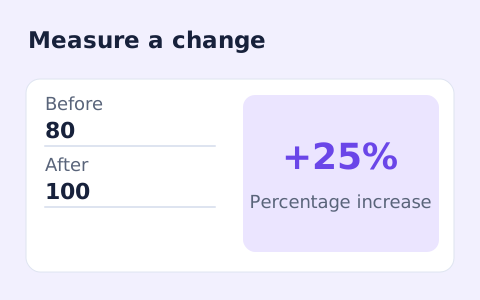
Calculate percentage change and absolute difference between a positive starting value and a new value.
Open toolChoose another tool for your next calculation, conversion, or text task.
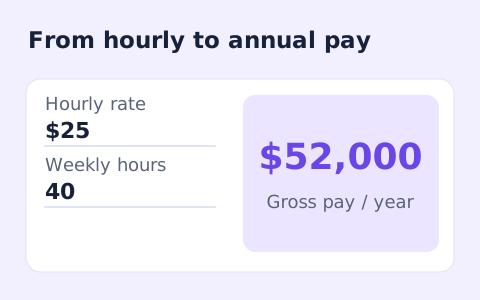
Convert hourly pay to gross annual, monthly, and weekly salary using your own working hours and weeks.
Open tool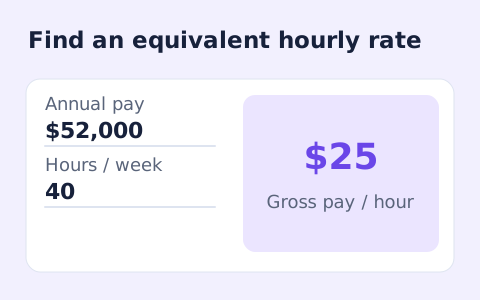
Convert annual gross salary into an hourly rate from your hours per week and paid weeks per year.
Open tool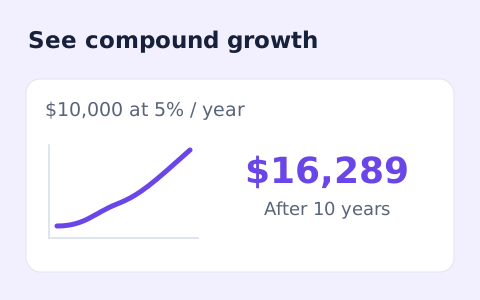
Estimate compound growth from a starting balance, monthly contribution, annual rate, and compound frequency.
Open tool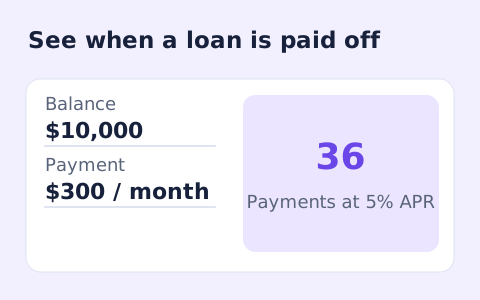
Estimate loan payoff time and interest savings from regular and extra monthly payments.
Open toolAdd or remove VAT using an amount and rate you enter.
Answers about using VAT Calculator and understanding its results.
Choose After VAT (gross); the tool divides the gross amount by one plus the VAT rate.
No. Rates vary by place and product, so enter the applicable rate.
No. Removing VAT divides gross by one plus the rate. Subtracting the rate directly from gross would use a different percentage basis.
No. It supplies arithmetic for one amount and rate. Invoice content, tax treatment, and rounding depend on the applicable rules.