
CSV to TSV Converter
Convert comma-separated records to tab-separated text. Quoted commas, tabs and line breaks remain inside their cells; download the TSV for your next import.
Open toolExport one .xlsx worksheet as row-based XML. Header names remain attributes, cell text is escaped, and formula values use the workbook’s cached results.
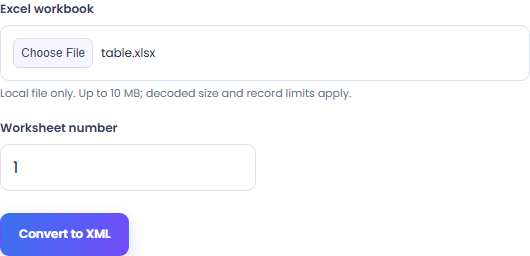
Enter the inputs, then select Convert to XML.
Result will appear here
Read a selected .xlsx worksheet and write escaped row and cell elements with header-name attributes.
Processing uses bundled libraries in this browser. The download contains the generated file, rather than a link to a conversion service.
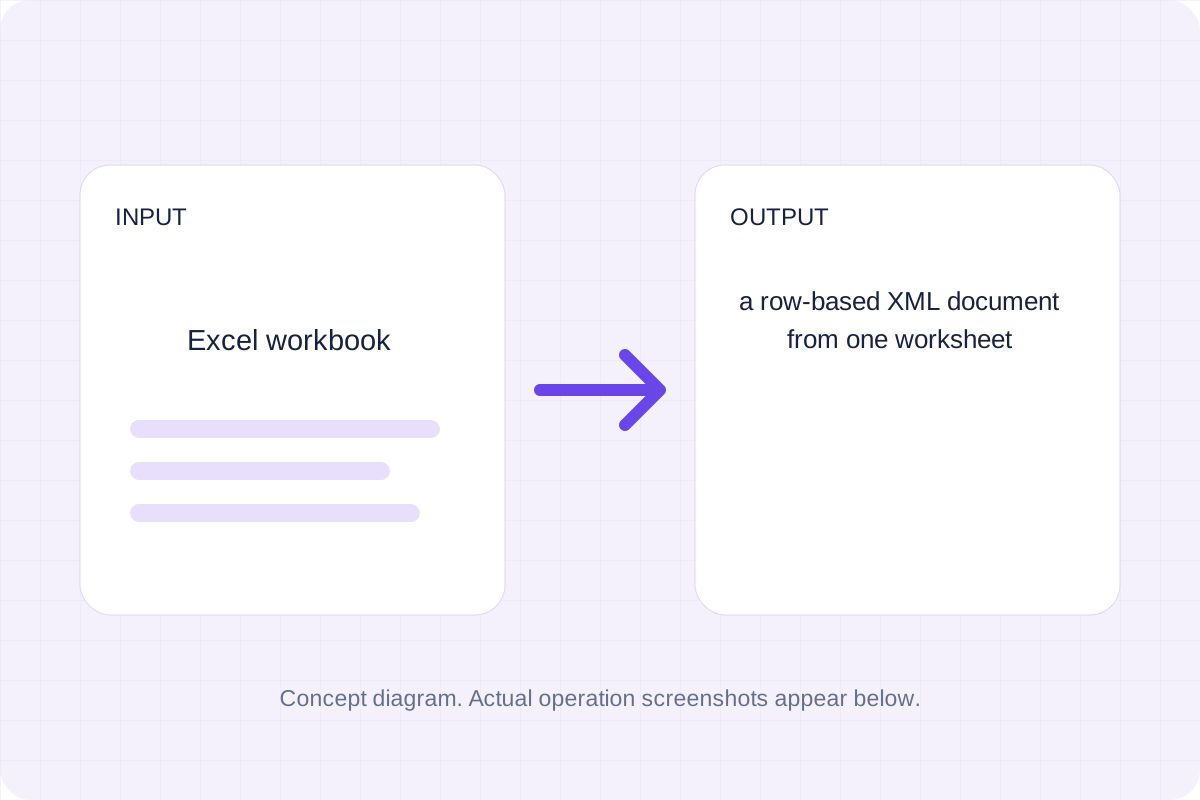
Start with the supported input, then check the generated result.
Choose Excel workbook. The file stays in this browser; it is not saved by the page.
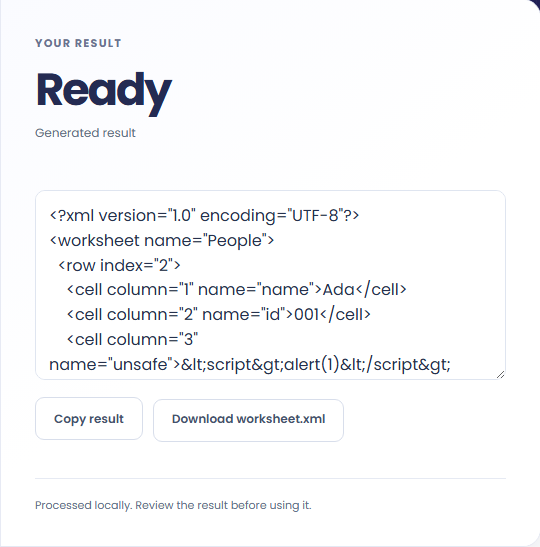
Review a row-based XML document from one worksheet. Download the generated file and check it in the application where you plan to use it.
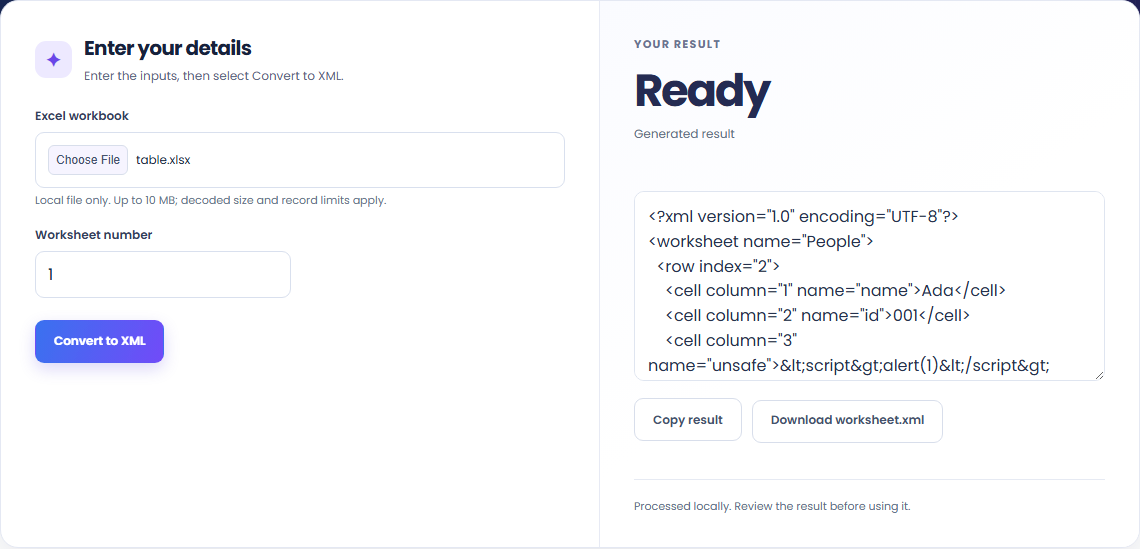
These workflows use the formats and behavior supported by this implementation.
Choose one worksheet by its number. The export writes rows and cells rather than trying to recreate the workbook’s visual layout.

Original header names are written as attributes, so labels containing spaces do not need to become XML element names.

Cell text is escaped for XML. Cached formula results are used without recalculation; charts, styles and merged layout are omitted.

Keep the output format and conversion policy in view.
A row-based XML document from one worksheet. Read a selected .xlsx worksheet and write escaped row and cell elements with header-name attributes.
Compare the result with the original before replacing a source file. Conversion limits are listed below.

Check these conditions before relying on the result.
Modern .xlsx only. Exports one worksheet, up to 5,000 rows and 100 columns. Formulas use cached results; they are not calculated. Formatting, merged layout and charts are omitted.
Input and results are not stored after leaving or reloading. Keep the original and download any output you need.

Convert comma-separated records to tab-separated text. Quoted commas, tabs and line breaks remain inside their cells; download the TSV for your next import.
Open tool
Turn a repeated XML element into CSV rows. Choose the record tag, then review flattened nested fields and attribute columns before saving the file.
Open tool
Write CSV records into a real Parquet file with UTF-8 string columns. Numbers and dates remain text, preserving leading-zero identifiers for later processing.
Open toolChoose another tool for your next calculation, conversion, or text task.
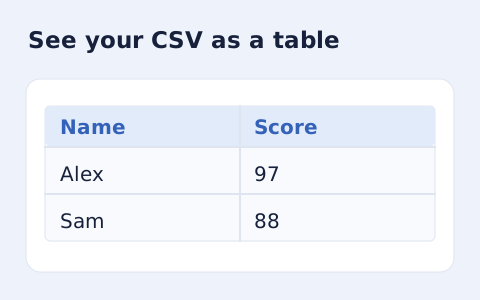
Inspect quoted CSV cells in a readable table without uploading your data.
Open tool
Check CSV quoting and consistent column counts, then review the record count and selected delimiter.
Open tool
Compare two JSON values by structure. See changed paths without treating object key order as a difference.
Open tool
Validate JSON against a draft-07 or 2020-12 schema. Review error paths without sending the documents to a server.
Open toolGenerate the supported output, review it, and save a copy for your next step.
Answers about using Excel to XML Converter and understanding its results.
It produces a row-based XML document from one worksheet. Modern .xlsx only. Exports one worksheet, up to 5,000 rows and 100 columns. Formulas use cached results; they are not calculated. Formatting, merged layout and charts are omitted.
Processing runs in this browser with local bundled libraries. No input is sent to a conversion server. Download your result before leaving the page.