
JWT Decoder
Inspect the header and payload of a compact JWT without verifying its signature.
Open toolEncode Unicode text into standard Base64 or decode padded Base64 back to UTF-8 text. Choose a direction, inspect the output and copy the converted text.
Enter the inputs, then select Calculate.
Result will appear here
The encoder converts UTF-8 text bytes to standard Base64, while the decoder validates the padded representation and requires valid UTF-8 output.
Whitespace around Base64 can be ignored during decoding, but Base64url is a different alphabet. This changes a representation and provides no encryption.
The field is limited to 100000 characters.

Choose encode or decode and use text in the supported standard Base64 format.
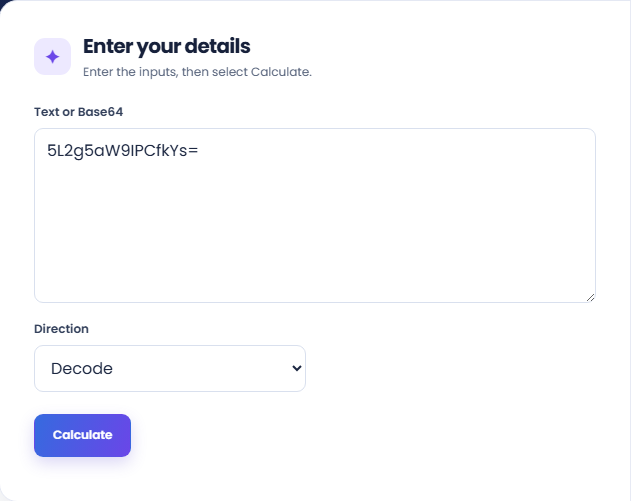
Select Encode or Decode and enter the source text or standard Base64. Encoding expects Unicode text. Decoding expects canonical standard Base64 with the required padding, not JWT-style Base64url.
Run the conversion and inspect the Encoded or Decoded result. Its character total describes the generated output, while the main text panel contains the value to review.
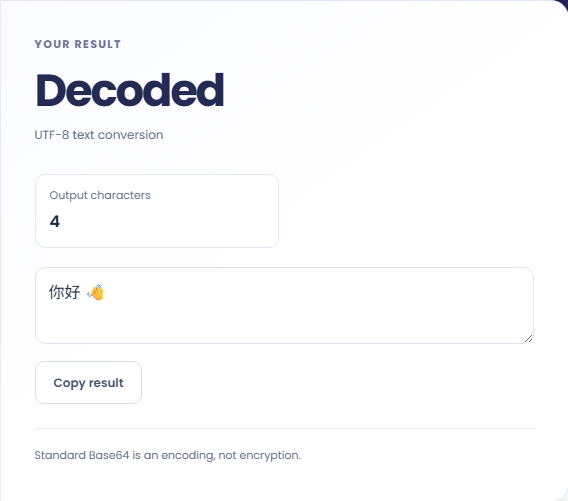
Copy the output after checking the direction. Read the encoding note: this is not encryption. A decoding failure can mean invalid padding or bytes that are not UTF-8 text, rather than a lost password.
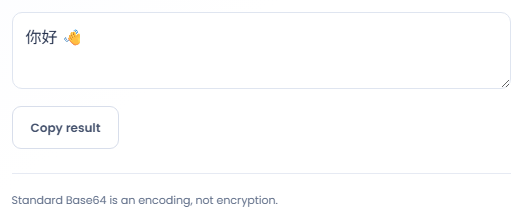
Use the result to inspect a text representation, not to protect a secret.
Decode a field documented as standard Base64 text to read its contents. Keep the source field name and encoding convention with your notes. If the field holds binary data instead, a decoding error does not establish that the original data is corrupt.

Encode a small known message for an integration fixture that explicitly expects UTF-8 text in Base64. Use the destination requirements to choose the representation. Encoding here does not create a file upload, sign a message, or send a request.

Encode text and decode the resulting string to inspect whether the characters survive the round trip. Include meaningful nonASCII characters and line breaks in the sample. This checks the chosen text representation rather than the behavior of a separate application.

Treat Base64 as a text representation of bytes when deciding where the result belongs.
Base64 changes the representation of bytes; it does not conceal the content from someone who can decode it. Do not use the encoded result as a password protection or encryption mechanism.
The decoder requires valid padding and valid UTF-8. It rejects malformed sequences rather than substituting replacement characters, which helps avoid silently changing a text payload.

Choose the direction that matches your source and keep meaningful whitespace when it forms part of the text.
The field is limited to 100000 characters. Empty input is rejected, although whitespace itself can be meaningful text when encoding. Confirm the selected direction before interpreting a failed conversion.
If a token uses Base64URL or lacks standard padding, inspect its documented format instead of editing characters at random. Use the JWT decoder for a compact token with separate encoded segments.

Inspect the header and payload of a compact JWT without verifying its signature.
Open tool
Calculate HMAC-SHA-256, SHA-384, or SHA-512 locally and copy hexadecimal or Base64 output.
Open tool
Percent-encode UTF-8 text for a URL component or convert escaped text back to readable characters.
Open toolChoose another tool for your next calculation, conversion, or text task.
Create one or more RFC 4122 version 4 UUIDs locally and copy them in one click.
Open tool
Convert pixel values to CSS rem units with a configurable root font size and a quick reference table.
Open tool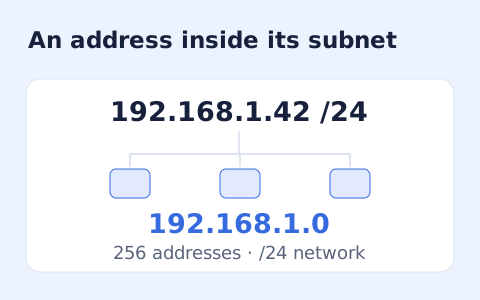
Calculate IPv4 subnet details from an address and CIDR prefix, including /31 and /32 cases.
Open tool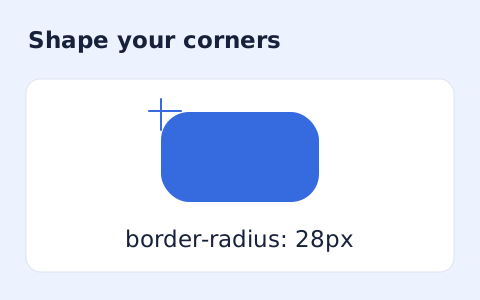
Generate a CSS border-radius declaration from four corner values and preview the shape.
Open toolChoose encode or decode and use text in the supported standard Base64 format.
Answers about using Base64 Encode Decode and understanding its results.
Yes. Unicode text is UTF-8 encoded before Base64 conversion.
The input must be canonical padded standard Base64 and decode to valid UTF-8.
This form returns Unicode text and rejects bytes that are not valid UTF-8. It is not a binary-file converter.
No. Use canonical padded standard Base64 here. JWTs use their own Base64url segment representation.