

Age Calculator
Find complete calendar years and months using end-of-month clamping, then count remaining UTC calendar days.
Open toolRecord laps while excluding paused time from active elapsed time. Provide Recorded lap milliseconds, Active elapsed milliseconds, Timer state to compute results directly in your browser. Uses the browser monotonic clock and real timing controls, not editable duration inputs. Up to 1,000 marked laps and 24 hours of active time. Paused time is excluded. Stop leaves an unmarked final segment separate from completed laps. Read-only state fields and CSV use milliseconds; browser scheduling is not certified sports timing.
Select Start timer, then Mark lap. Use Pause timer, Resume timer or Stop timer to control the timer.
Result will appear here
The Lap Timer evaluates Recorded lap milliseconds, Active elapsed milliseconds, Timer state in client-side JavaScript using the deterministic rule below and updates the output panel immediately without uploading data to a server.
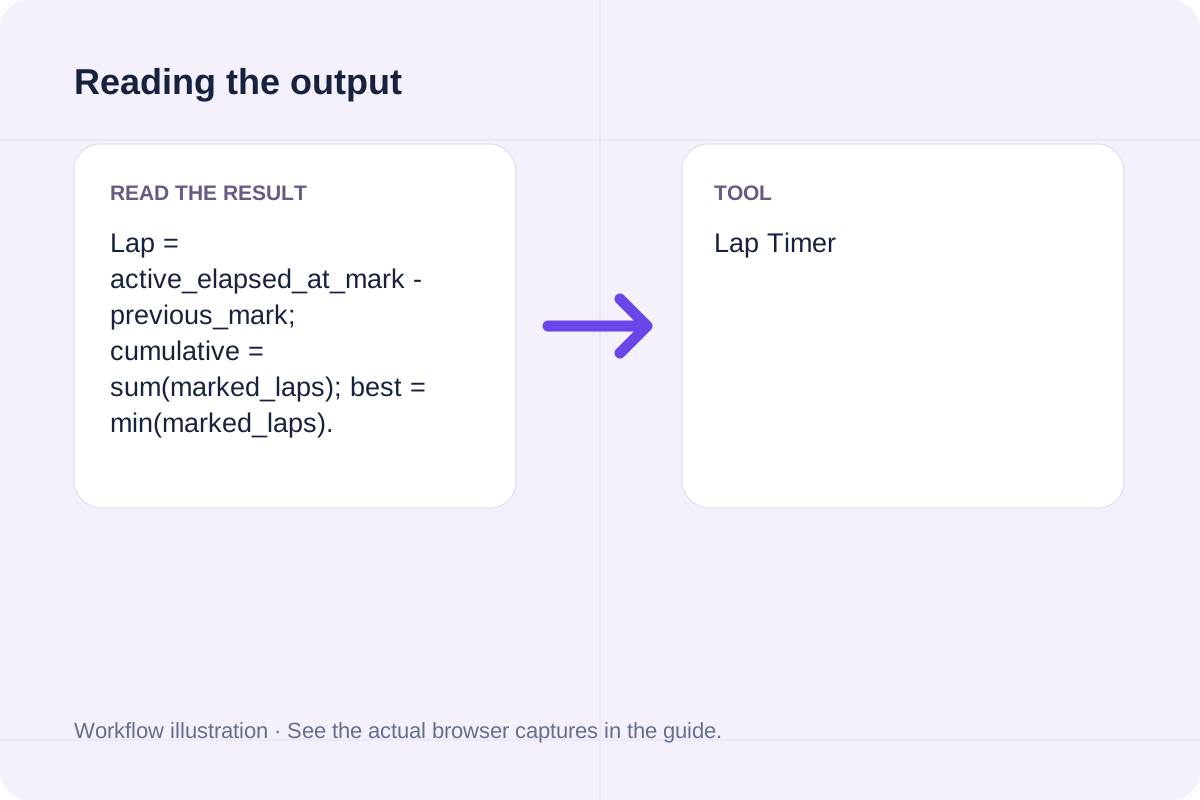
Lap = active_elapsed_at_mark - previous_mark; cumulative = sum(marked_laps); best = min(marked_laps).
Uses the browser monotonic clock and real timing controls, not editable duration inputs. Up to 1,000 marked laps and 24 hours of active time. Paused time is excluded. Stop leaves an unmarked final segment separate from completed laps. Read-only state fields and CSV use milliseconds; browser scheduling is not certified sports timing.
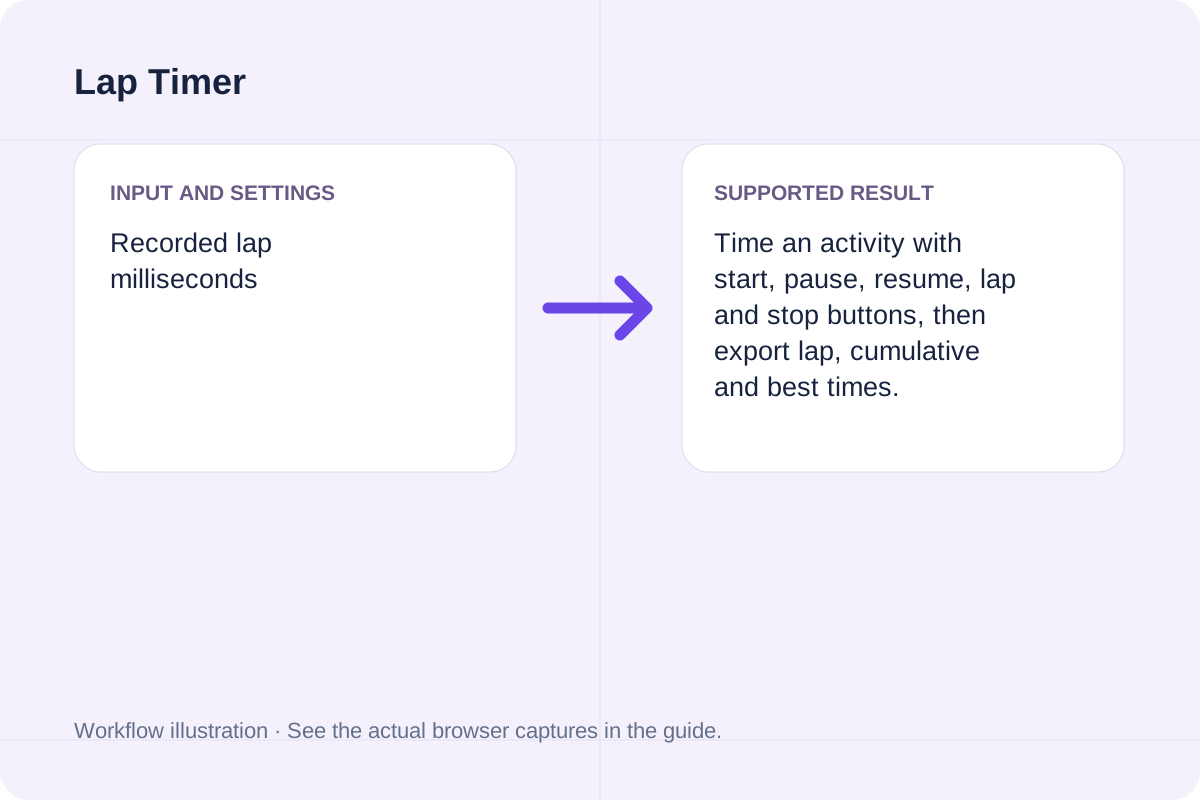
Review the input parameters, allowed value ranges, and worked reference cases for the Lap Timer below before running your calculation.
| Parameter / Scenario | Default / Sample Value | Rule or Allowed Range | Output / Usage Note |
|---|---|---|---|
| Input: Recorded lap milliseconds | (User supplied) | Input type: text | Required workspace parameter |
| Input: Active elapsed milliseconds | 0 | Range: 0 to 86400000 | Required workspace parameter |
| Input: Timer state | (User supplied) | Options: Idle, Running, Paused, Stopped | Required workspace parameter |
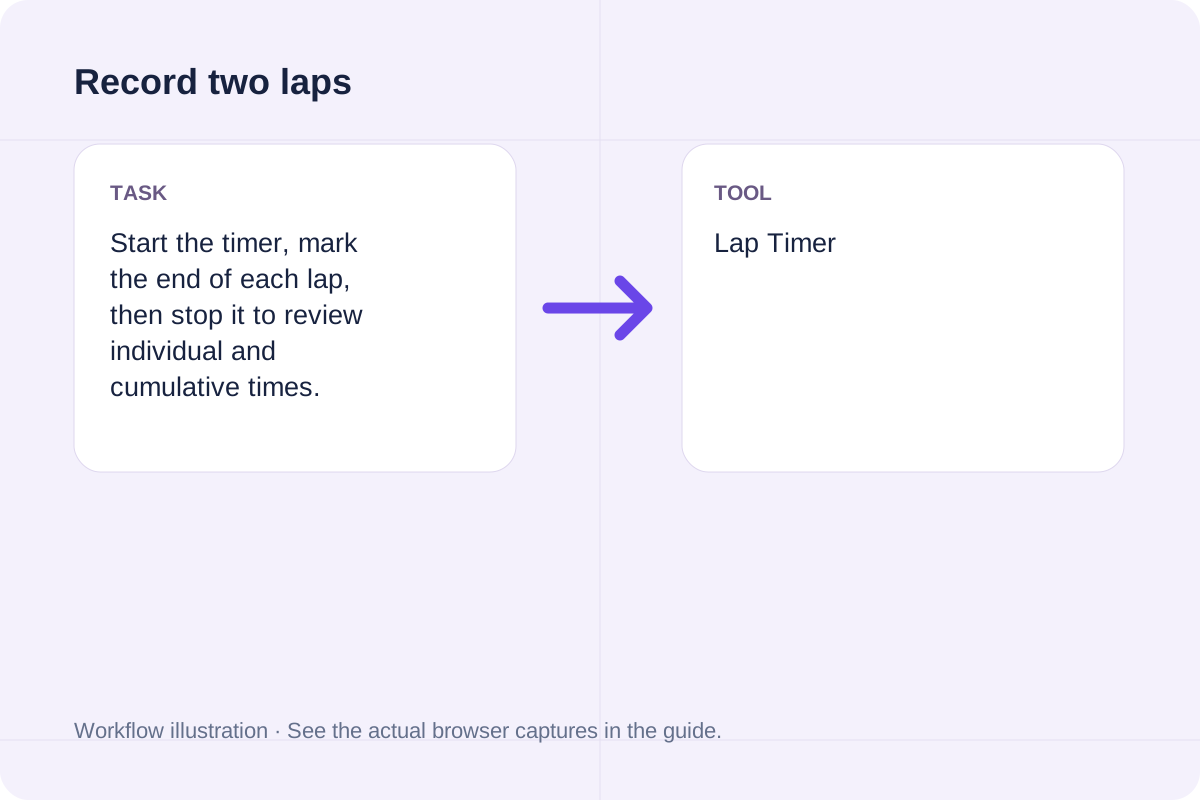
| Worked Case 1: Record two laps | Preloaded / test values | Lap = active_elapsed_at_mark - previous_mark; cumulative = sum(marked_laps); best = min(marked_laps) | Start the timer, mark the end of each lap, then stop it to review individual and cumulative times. |
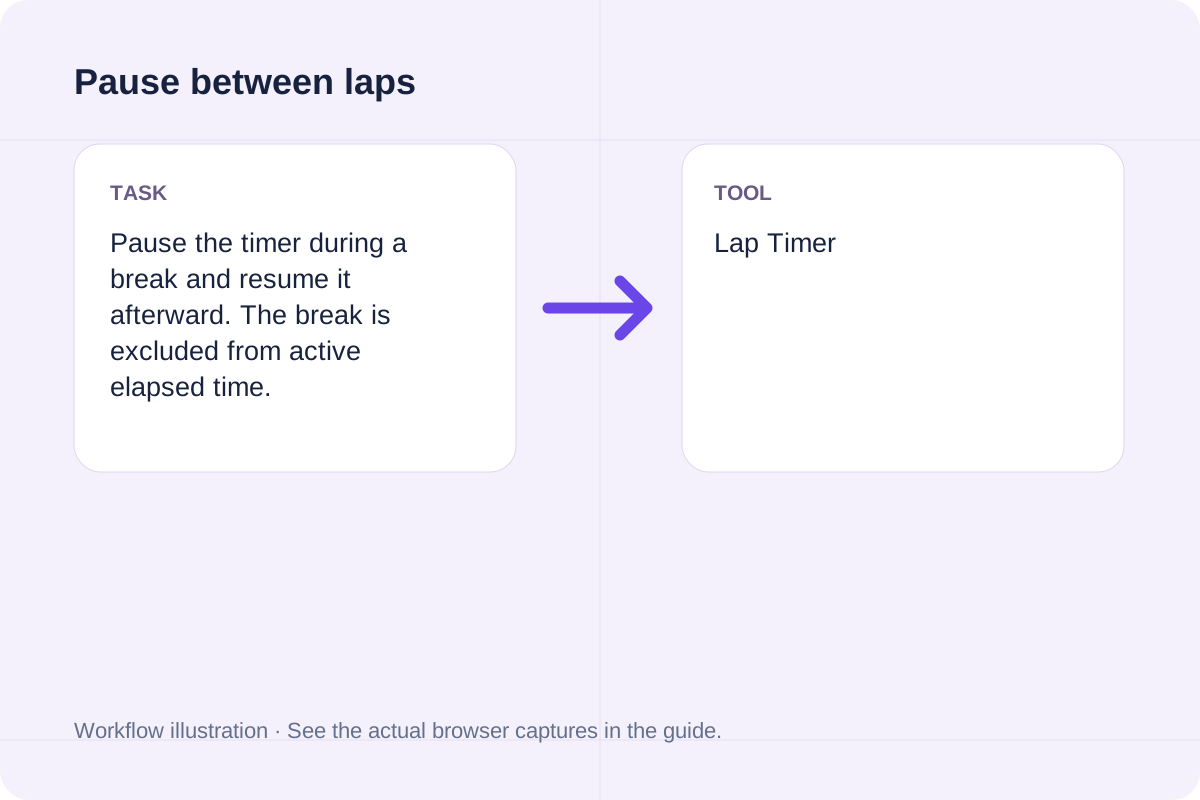
| Worked Case 2: Pause between laps | Preloaded / test values | Lap = active_elapsed_at_mark - previous_mark; cumulative = sum(marked_laps); best = min(marked_laps) | Pause the timer during a break and resume it afterward. The break is excluded from active elapsed time. |
Follow these three steps to configure Recorded lap milliseconds, Active elapsed milliseconds, Timer state, verify unit and boundary rules, and export your Lap Timer output.
Select Start timer. Use Pause timer for a break, then Resume timer; paused time is excluded from active elapsed time.
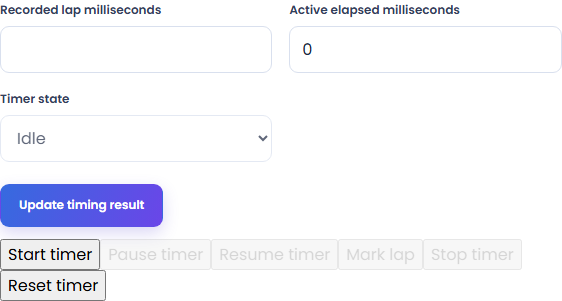
Select Mark lap at each lap boundary. The list records the lap duration and cumulative active time.
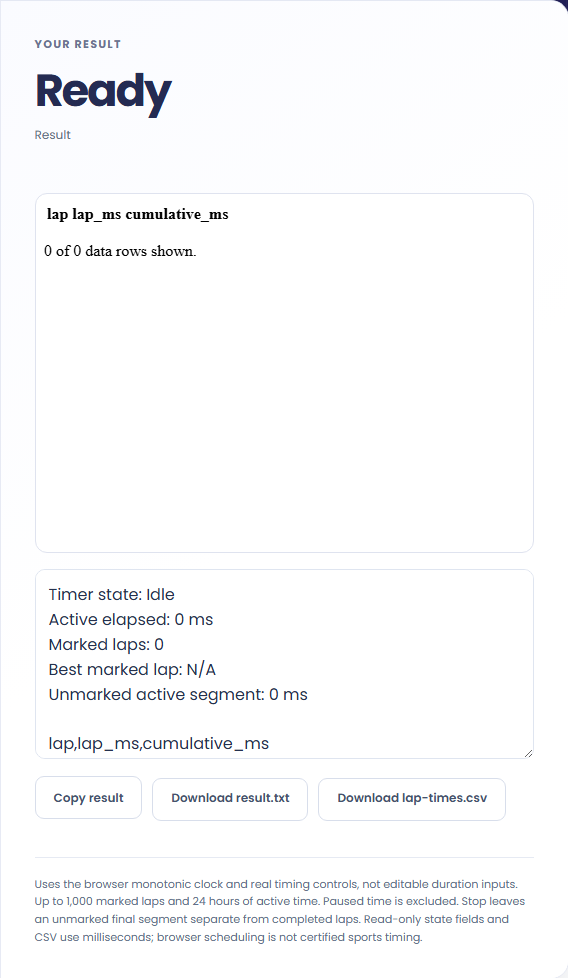
Select Stop timer to freeze the record. Copy or save TXT, and use lap-times.csv for the full lap table.
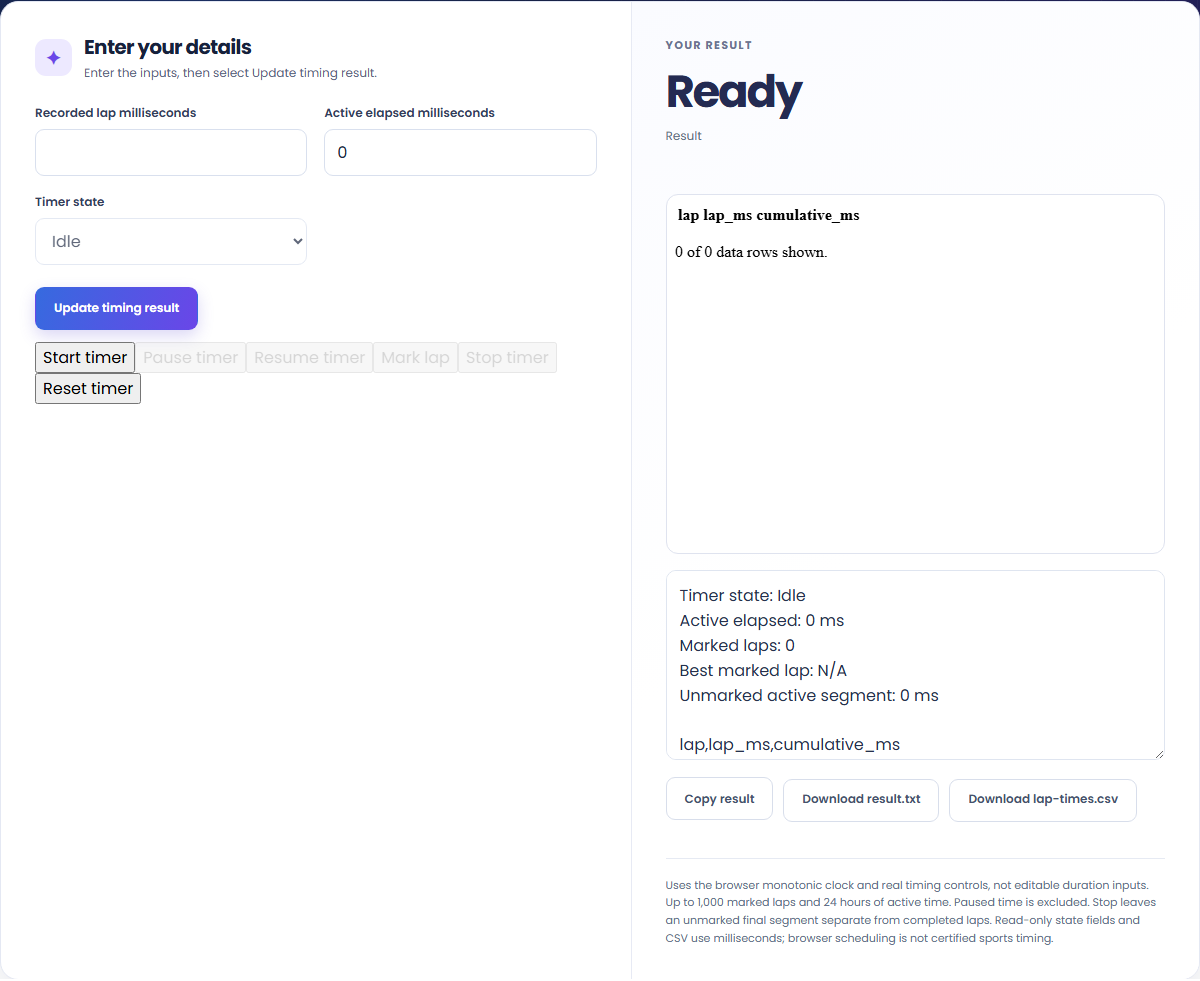
These concrete scenarios illustrate how the Lap Timer processes baseline inputs, comparison checks, and boundary constraints.
Start the timer, mark the end of each lap, then stop it to review individual and cumulative times.
Pause the timer during a break and resume it afterward. The break is excluded from active elapsed time.
When solving for 'lap timer', verify that Recorded lap milliseconds, Active elapsed milliseconds, Timer state use consistent units and stay within the documented scope: Uses the browser monotonic clock and real timing controls, not editable duration inputs. Up to 1,000 marked laps and 24 hours of active time. Paused time is excluded. Stop leaves an unmarked final segment separate from completed laps. Read-only state fields and CSV use milliseconds; browser scheduling is not certified sports timing.
The output panel reports the exact result derived from Recorded lap milliseconds, Active elapsed milliseconds, Timer state alongside any unit or formatting notes.
Every calculation follows the rule: Lap = active_elapsed_at_mark - previous_mark; cumulative = sum(marked_laps); best = min(marked_laps). Because JavaScript uses IEEE 754 double-precision floating-point arithmetic, numeric outputs display up to 12 significant digits where applicable.
Always cross-check the displayed result against the scope note (Uses the browser monotonic clock and real timing controls, not editable duration inputs. Up to 1,000 marked laps and 24 hours of active time. Paused time is excluded. Stop leaves an unmarked final segment separate from completed laps. Read-only state fields and CSV use milliseconds; browser scheduling is not certified sports timing) before applying the value to production specifications, financial models, or lab records.
Review these boundary constraints and validation rules before relying on the Lap Timer output.
Operational scope: Uses the browser monotonic clock and real timing controls, not editable duration inputs. Up to 1,000 marked laps and 24 hours of active time. Paused time is excluded. Stop leaves an unmarked final segment separate from completed laps. Read-only state fields and CSV use milliseconds; browser scheduling is not certified sports timing. Inputs that violate minimum/maximum bounds or required format rules are rejected with a clear diagnostic prompt.
Need an adjacent calculation in Date & Time? Use the related tools linked below to chain your workflow without leaving your browser.
Find complete calendar years and months using end-of-month clamping, then count remaining UTC calendar days.
Open tool
Apply the year and month offset together, clamp to the destination month, then add UTC calendar days.
Open tool
Convert Excel date serial numbers to calendar dates, HH:MM:SS times, and Unix timestamps (or vice versa) with Lotus 1-2-3 1900 leap-year bug handling.
Open toolChoose another tool for your next calculation, conversion, or text task.
Generate random dates within an inclusive calendar range with weekend and repeat rules.
Open tool
Calculate remaining school days, total calendar days, weekend days, and instructional weeks between start and end dates minus holidays.
Open tool
Export iCalendar events as CSV rows. Review recorded dates, time-zone identifiers, descriptions and recurrence rules without expanding repeating events.
Open tool
Subtract two 24-hour clock times; optionally move an earlier end time into the next day.
Open toolAnswers about using Lap Timer and understanding its results.
The Lap Timer applies the rule: Lap = active_elapsed_at_mark - previous_mark; cumulative = sum(marked_laps); best = min(marked_laps). Enter Recorded lap milliseconds, Active elapsed milliseconds, Timer state into the workspace and the tool computes the exact output in your browser.
Yes. Provide Recorded lap milliseconds, Active elapsed milliseconds, Timer state using the documented units and format shown in the quick reference table above. Preloaded default values let you test the workflow immediately.
Uses the browser monotonic clock and real timing controls, not editable duration inputs. Up to 1,000 marked laps and 24 hours of active time. Paused time is excluded. Stop leaves an unmarked final segment separate from completed laps. Read-only state fields and CSV use milliseconds; browser scheduling is not certified sports timing. Confirm that your inputs fall within the allowed ranges before exporting the result.
Yes. All calculations for the Lap Timer execute 100% locally in your browser's JavaScript runtime. No inputs or results are uploaded to any external server.
Choose another tool for your next calculation, conversion, or text task.