
Date Difference Calculator
Subtract UTC date-only timestamps and divide by 86,400,000 milliseconds.
Open toolApply the year and month offset together, clamp to the destination month, then add UTC calendar days. Whole-number offsets only.
Enter the inputs, then select Calculate date.
Result will appear here
Apply the year and month offset together, clamp to the destination month, then add UTC calendar days.
Whole-number offsets only. Supported dates are years 0001–9999. No time zone, business-day or holiday calculation.
Start with your own input.
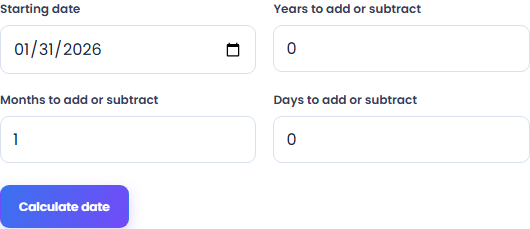
Set years to add or subtract, months to add or subtract, days to add or subtract.
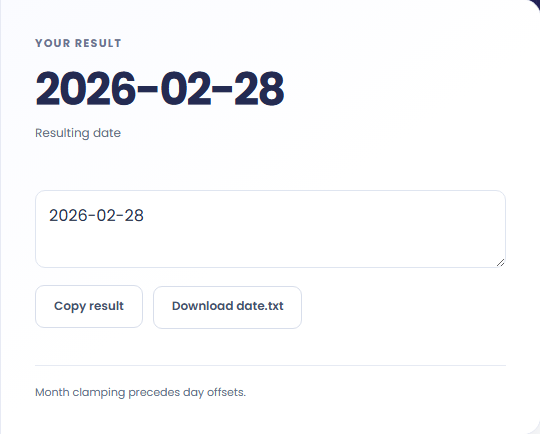
Select Calculate date. Review the date after a calendar offset, then use Copy result or download the result file.
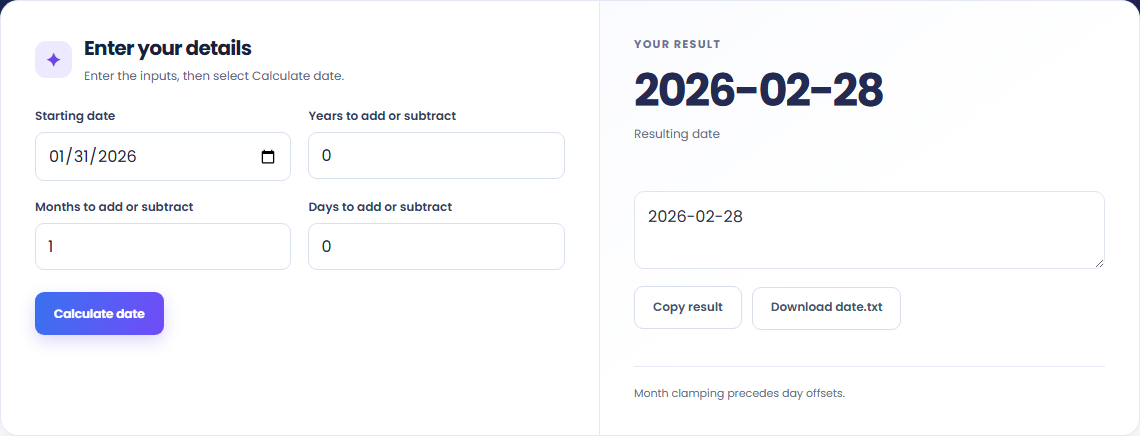
To find a calendar deadline, start with starting date. Apply the year and month offset together, clamp to the destination month, then add UTC calendar days.

To add a month to an end-of-month date, start with starting date. Whole-number offsets only.

To move a date backward, start with starting date. Review the date after a calendar offset, then use Copy result or download the result file.

Check what the output means.
The date after a calendar offset. Apply the year and month offset together, clamp to the destination month, then add UTC calendar days.
Whole-number offsets only. Supported dates are years 0001–9999. No time zone, business-day or holiday calculation.

Check the format before processing.
Whole-number offsets only. Supported dates are years 0001–9999. No time zone, business-day or holiday calculation.
Inputs and results are handled in this browser.

Subtract UTC date-only timestamps and divide by 86,400,000 milliseconds.
Open tool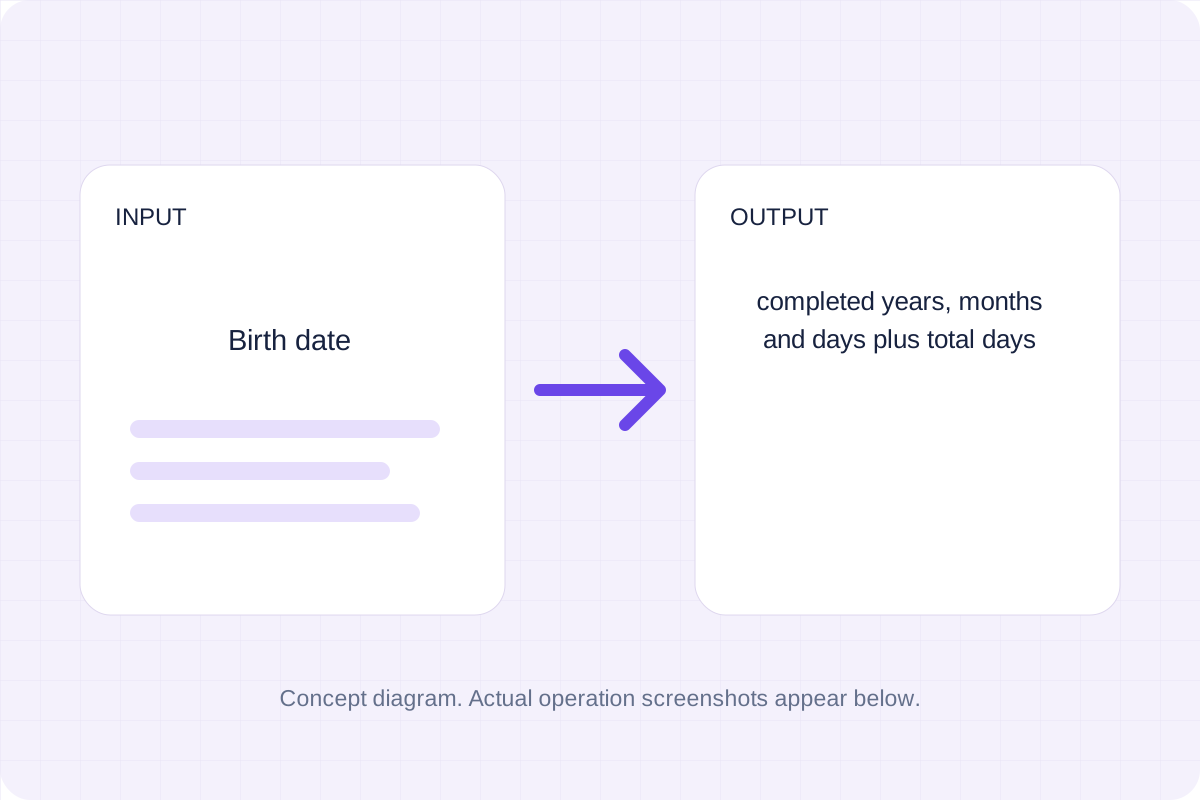
Find complete calendar years and months using end-of-month clamping, then count remaining UTC calendar days.
Open tool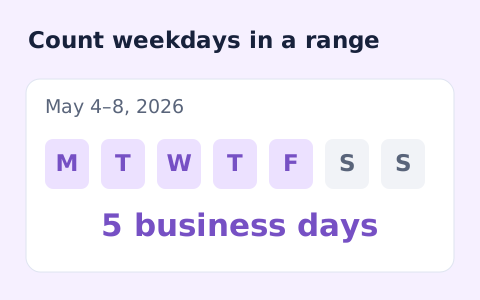
Count weekdays between two dates, including both endpoints and excluding Saturdays and Sundays.
Open toolChoose another tool for your next calculation, conversion, or text task.
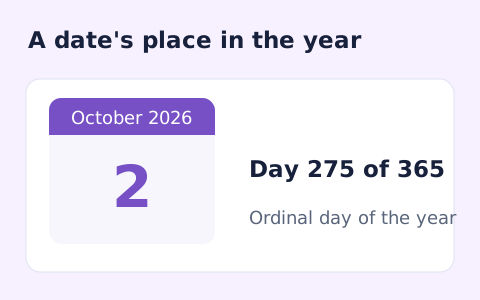
Find whether a date is day 1 through 365 or 366 of its calendar year.
Open tool
Subtract two 24-hour clock times; optionally move an earlier end time into the next day.
Open tool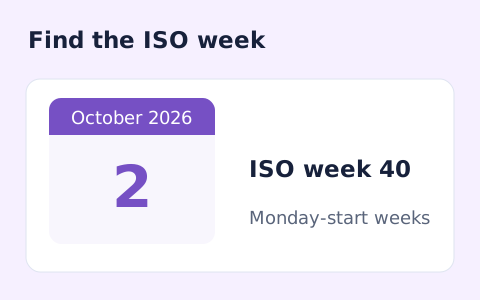
Calculate a date's ISO 8601 week number, week-year, and weekday.
Open tool
Build an iCalendar file from a CSV event list. Use UTC timestamps or all-day dates, review each event and import the downloaded file into your calendar.
Open toolReview the date after a calendar offset, then use Copy result or download the result file.
Answers about using Date Calculator and understanding its results.
Whole-number offsets only. Supported dates are years 0001–9999. No time zone, business-day or holiday calculation.
Yes. Download the result file after processing. Text results also have Copy result. Processing uses local browser code; no account is required.