AI Tools Free

ImageMagick Command Generator (magick v7 Resize, Crop, WebP & Batch CLI)

Build shell-safe ImageMagick v7 (`magick`) and v6 (`convert` / `mogrify`) commands with exact geometry modifiers (`^`, `>`, `!`), center-gravity cropping, sRGB color normalization, and batch folder pipelines.

Free to useNo sign-upRuns in your browser
Enter your details

Enter the inputs, then select Generate ImageMagick Command.

Single file path (e.g. hero-source.png) or glob pattern for batch processing.

Output filename (format is inferred from extension: .webp, .avif, .jpg, .png).

ImageMagick 7+ unifies operations under 'magick'; Linux distros shipping IM6 use 'convert'.

Choose how ImageMagick handles aspect ratio differences between source and target.

Target horizontal resolution in pixels.

Target vertical resolution in pixels.

Encoder quality for WebP, AVIF, and JPEG (80-85 balances visual fidelity and byte size).

Stripping EXIF/GPS tags and normalizing to sRGB prevents washed-out colors in web browsers.

Your result
Enter your details

Result will appear here

How ImageMagick Operator Order Affects Output Quality & File Size

Unlike declarative CLI tools, ImageMagick evaluates options strictly left-to-right as a stack of image operations.

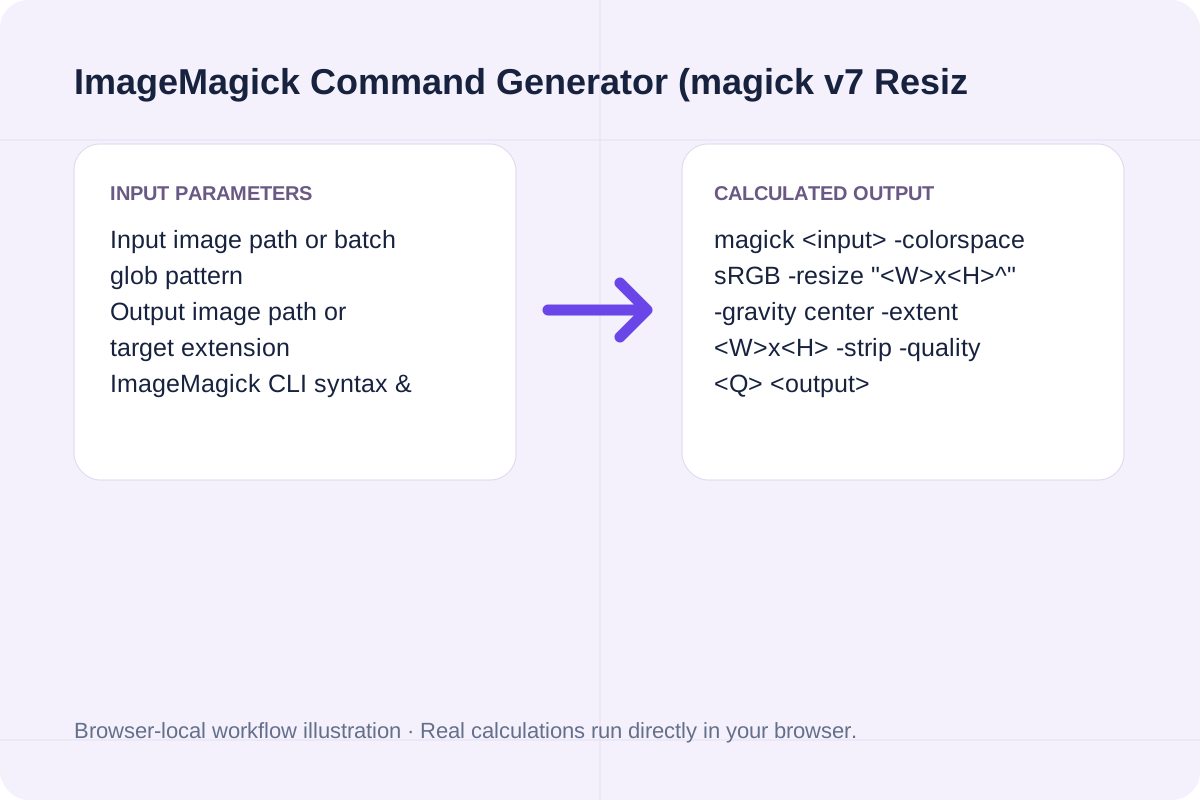
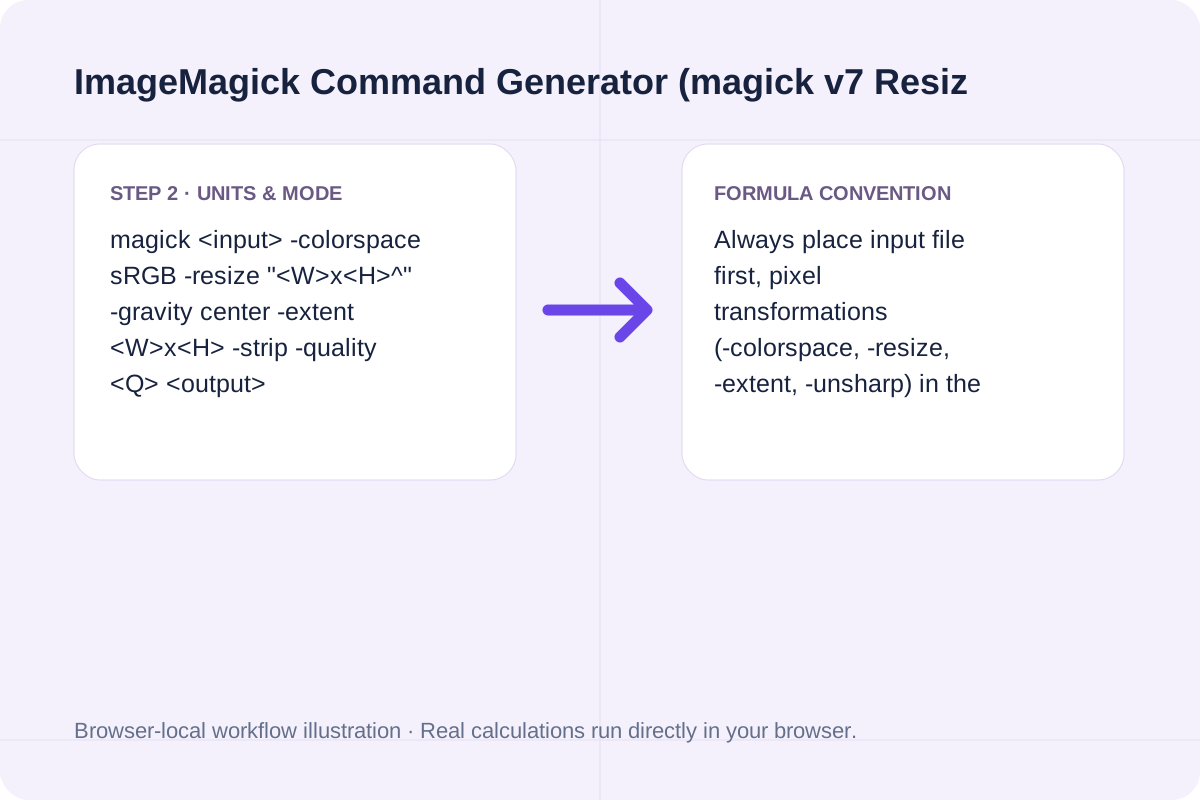
magick <input> -colorspace sRGB -resize "<W>x<H>^" -gravity center -extent <W>x<H> -strip -quality <Q> <output>

Always place input file first, pixel transformations (-colorspace, -resize, -extent, -unsharp) in the middle, and encoding flags (-strip, -quality) immediately before the output filename.

ImageMagick Command Generator (magick v7 Resize, Crop, WebP & Batch CLI) workflow overview
Workflow overview for ImageMagick Command Generator (magick v7 Resize, Crop, WebP & Batch CLI).

ImageMagick Geometry Modifiers & Web Optimization Cheat Sheet

Compare how ImageMagick geometry flags transform a `2400×1200` (`2:1`) source photo when targeting a `1200×800` (`3:2`) output box.

Geometry FlagCLI SyntaxResulting Pixel Size (from 2400×1200)Best Use Case
**Aspect-Fill + Crop (`^` + `-extent`)**`-resize "1200x800^" -gravity center -extent 1200x800``1200×800 px` (scales to `1600×800`, crops `200 px` left/right)Blog covers, Open Graph cards & product grids requiring exact `3:2` or `16:9` frames
**Fit Inside Box (Default)**`-resize "1200x800"``1200×600 px` (preserves `2:1` aspect ratio inside box)Lightbox galleries where full uncropped composition must remain visible
**Shrink Only (`>`)**`-resize "1200x800>"``1200×600 px` (leaves a `800×400` image untouched)User-uploaded avatars and CMS media pipelines avoiding blurry upscaling
**Force Exact (`!`)**`-resize "1200x800!"``1200×800 px` (stretches height by `1.33x` non-proportionally)Texture maps, LUTs, or synthetic masks where aspect ratio distortion is intentional

How to Build Your ImageMagick Command

Follow three steps to generate both a single-image command and a batch directory pipeline.

Set source/output filenames and ImageMagick version

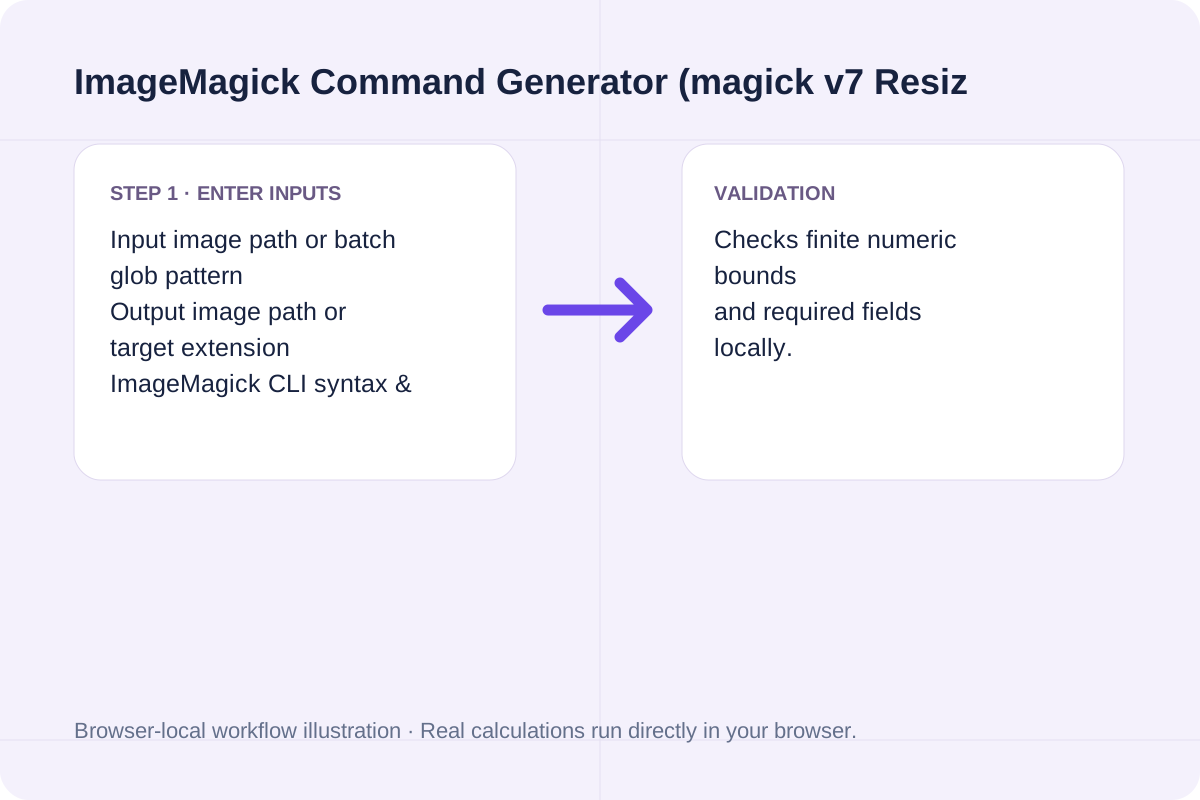
Enter your input file (such as hero-source.png) and target output (such as hero-cover.webp), and choose ImageMagick v7 ('magick'), v7 batch ('magick mogrify'), or legacy v6 ('convert').

ImageMagick Command Generator (magick v7 Resize, Crop, WebP & Batch CLI) step 1: Set source/output filenames and ImageMagick version
Step 1 workflow overview for ImageMagick Command Generator (magick v7 Resize, Crop, WebP & Batch CLI).

Select resize/crop geometry and target dimensions

Pick Aspect-Fill & Center Crop ('^' + '-extent') when you need exact card dimensions without distortion, or Shrink Only ('>') to cap maximum dimensions.

ImageMagick Command Generator (magick v7 Resize, Crop, WebP & Batch CLI) step 2: Select resize/crop geometry and target dimensions
Step 2 workflow overview for ImageMagick Command Generator (magick v7 Resize, Crop, WebP & Batch CLI).

Configure WebP/AVIF quality and sRGB metadata stripping

Set encoder quality (82 is optimal for WebP covers) and enable '-colorspace sRGB -strip' to remove camera EXIF bloat while preserving accurate web colors.

ImageMagick Command Generator (magick v7 Resize, Crop, WebP & Batch CLI) step 3: Configure WebP/AVIF quality and sRGB metadata stripping
Step 3 workflow overview for ImageMagick Command Generator (magick v7 Resize, Crop, WebP & Batch CLI).

Real-World ImageMagick CLI Recipes

Verify these three production commands for responsive web assets and batch folder conversions.

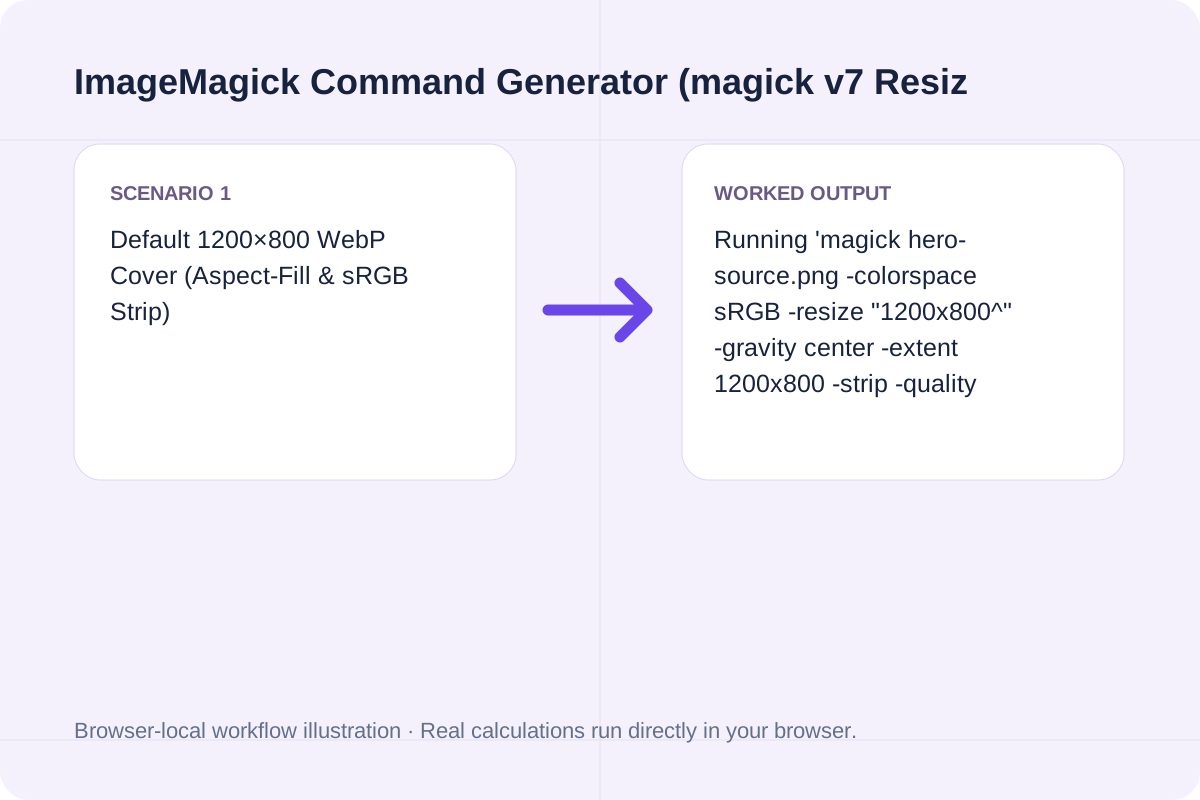
Default 1200×800 WebP Cover (Aspect-Fill & sRGB Strip)

Running 'magick hero-source.png -colorspace sRGB -resize "1200x800^" -gravity center -extent 1200x800 -strip -quality 82 hero-cover.webp' scales any source image to fill 1200×800 px, center-crops excess edges, strips EXIF, and encodes at WebP Q82.

ImageMagick Command Generator (magick v7 Resize, Crop, WebP & Batch CLI) example 1: Default 1200×800 WebP Cover (Aspect-Fill & sRGB Strip)
Worked example 1 for ImageMagick Command Generator (magick v7 Resize, Crop, WebP & Batch CLI).

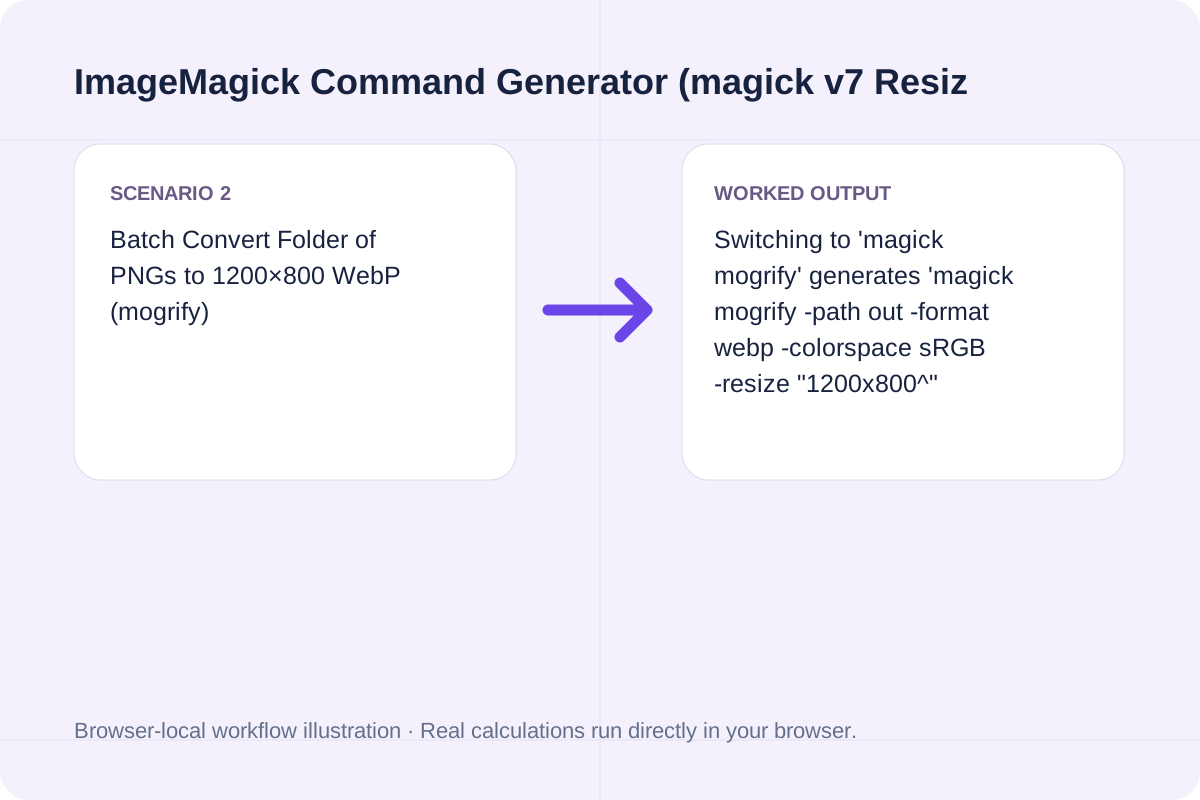
Batch Convert Folder of PNGs to 1200×800 WebP (mogrify)

Switching to 'magick mogrify' generates 'magick mogrify -path out -format webp -colorspace sRGB -resize "1200x800^" -gravity center -extent 1200x800 -strip -quality 82 *.png', converting an entire folder in one pass.

ImageMagick Command Generator (magick v7 Resize, Crop, WebP & Batch CLI) example 2: Batch Convert Folder of PNGs to 1200×800 WebP (mogrify)
Worked example 2 for ImageMagick Command Generator (magick v7 Resize, Crop, WebP & Batch CLI).

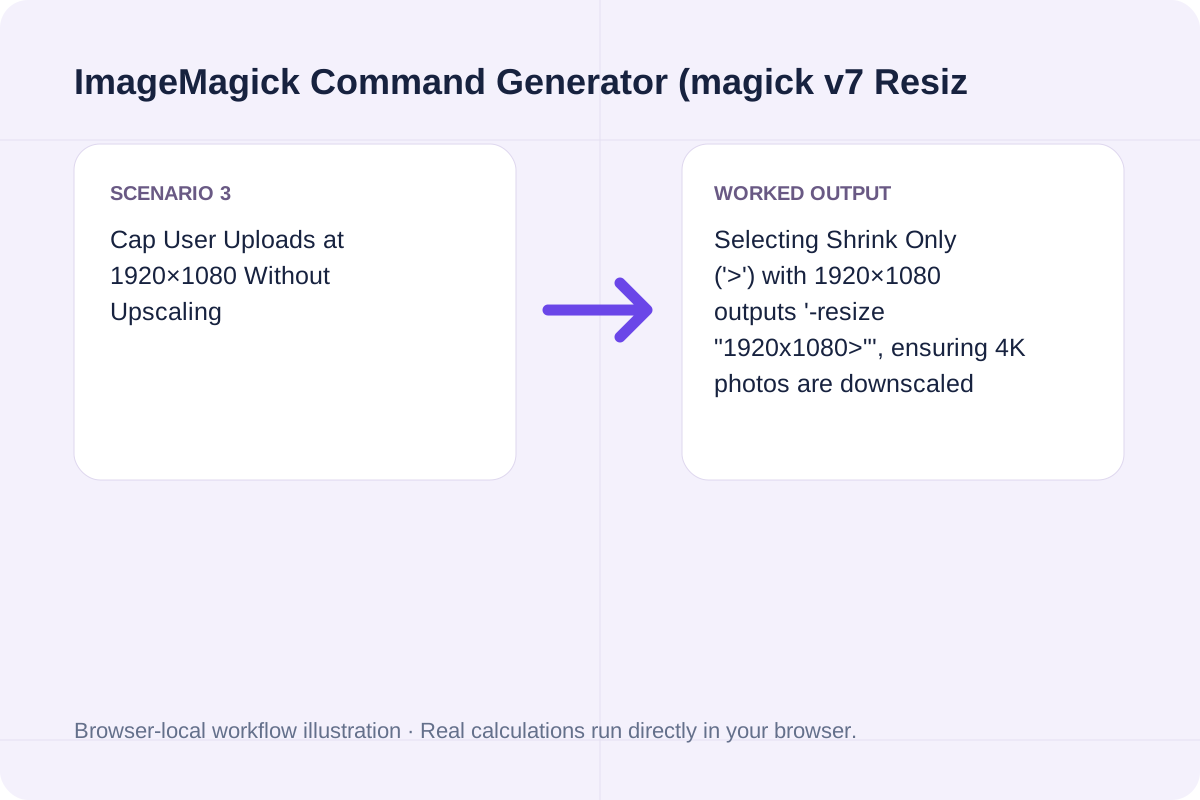
Cap User Uploads at 1920×1080 Without Upscaling

Selecting Shrink Only ('>') with 1920×1080 outputs '-resize "1920x1080>"', ensuring 4K photos are downscaled while 800×600 screenshots remain at native resolution.

ImageMagick Command Generator (magick v7 Resize, Crop, WebP & Batch CLI) example 3: Cap User Uploads at 1920×1080 Without Upscaling
Worked example 3 for ImageMagick Command Generator (magick v7 Resize, Crop, WebP & Batch CLI).

Understanding the Generated CLI & Batch Loop Output

The tool outputs your primary one-liner plus cross-platform batch equivalents.

The primary result displays the exact one-line command ready to paste into your terminal, along with target aspect ratio and geometry behavior summary.

The detail breakdown includes a POSIX 'for' loop and a 'magick mogrify' command so you can run the exact same transformation across hundreds of files.

How to interpret ImageMagick Command Generator (magick v7 Resize, Crop, WebP & Batch CLI) results
Result interpretation guide for ImageMagick Command Generator (magick v7 Resize, Crop, WebP & Batch CLI).

Memory Limits, Delegate Libraries & Security Checks

Check these environment details when running ImageMagick on CI runners or production servers.

WebP and AVIF output require 'libwebp' and 'libheif' delegates compiled into ImageMagick. Run 'magick -list format | grep -E "WEBP|AVIF"' to verify read/write ('rw+') support.

When processing untrusted user uploads on servers, configure '/etc/ImageMagick-7/policy.xml' to cap maximum memory, disk cache, and pixel dimensions (e.g. width/height <= 16KP) and disable Ghostscript (PS/PDF/EPS) coders.

Scope limits and assumptions for ImageMagick Command Generator (magick v7 Resize, Crop, WebP & Batch CLI)
Assumptions and input boundaries for ImageMagick Command Generator (magick v7 Resize, Crop, WebP & Batch CLI).

Frequently Asked Questions About ImageMagick CLI Commands

Answers about using ImageMagick Command Generator (magick v7 Resize, Crop, WebP & Batch CLI) and understanding its results.

What is the difference between 'magick' (v7) and 'convert' (v6)?

ImageMagick 7 replaced the standalone 'convert' binary with the unified 'magick' command (which also prevents Windows path conflicts with the built-in NTFS convert.exe utility). For batch in-place or directory output in v7, run 'magick mogrify' instead of standalone 'mogrify'.

How do I resize and center-crop an image to exact dimensions without stretching?

Combine the caret '^' geometry flag with gravity and extent: '-resize 1200x800^ -gravity center -extent 1200x800'. First, '1200x800^' scales the image so both dimensions are at least 1200x800; next, '-gravity center -extent 1200x800' crops excess pixels evenly from the center.

Why do I need quotes around '1200x800>' or '1200x800^' in Bash and PowerShell?

In POSIX shells (bash/zsh), '>' is the output redirection operator, so unquoted '-resize 1200x800>' will overwrite a file named '1200x800'! In Windows cmd.exe, '^' is the escape character. Wrapping the geometry argument in double quotes ("1200x800^" or "1200x800>") is safe across Bash, Zsh, and PowerShell.

Why should web images include '-colorspace sRGB -strip'?

Photos exported from cameras or macOS Display P3 / AdobeRGB workflows embed ICC profiles that inflate small thumbnails by 3 KB to 60 KB, or render with desaturated colors if '-strip' removes the ICC profile without first converting pixel values to sRGB. Placing '-colorspace sRGB' before '-strip' bakes standard web colors into the image and deletes private GPS/EXIF metadata.

Try your own values

Choose another tool for your next calculation, conversion, or text task.

Generate ImageMagick Command