
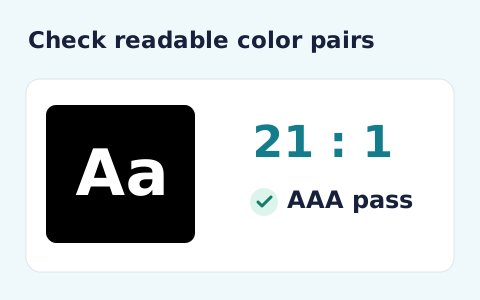
Color Contrast Checker
Calculate the WCAG 2 contrast ratio and AA/AAA results for normal and large text.
Open toolBuild two-color linear or circular radial gradients with this online CSS gradient generator. Choose opaque hex colors, preview the transition and copy the background declaration.
Enter the inputs, then select Generate CSS.
Result will appear here
The generator inserts two validated hexadecimal colors into a linear or circular radial CSS gradient and applies the angle to the linear type.
A browser preview shows the transition, and the output provides a background declaration for a CSS rule. Extra stops, transparency, and component states are not generated.
Use valid opaque hexadecimal colors and confirm the selected gradient type.

Choose two opaque colors and a gradient type, then use the preview to inspect their transition.
Choose linear or radial, enter the two opaque hexadecimal colors, and set the linear angle. The angle is relevant only to the linear type; radial output uses a circular transition.

Run the generator and inspect the two-color transition in the browser preview. Compare the displayed endpoint colors with the ones intended for your component.
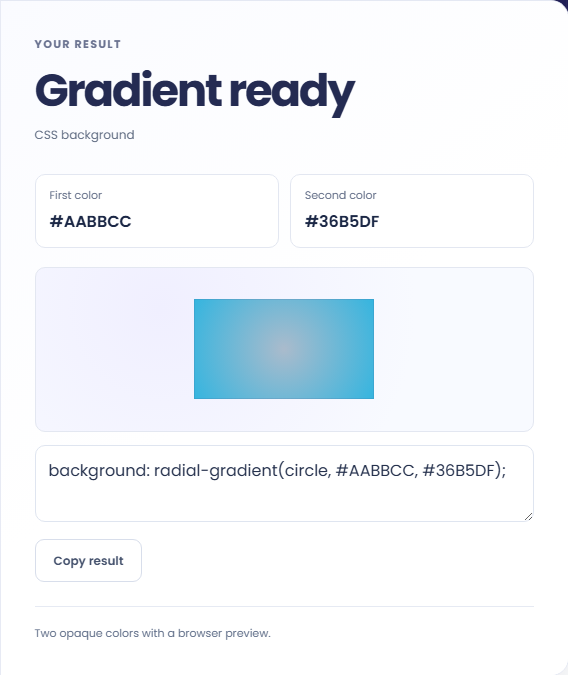
Copy the generated background declaration into a CSS rule. Review it on the real element, including dimensions and text placement. The output does not supply extra stops, transparency, or component states.
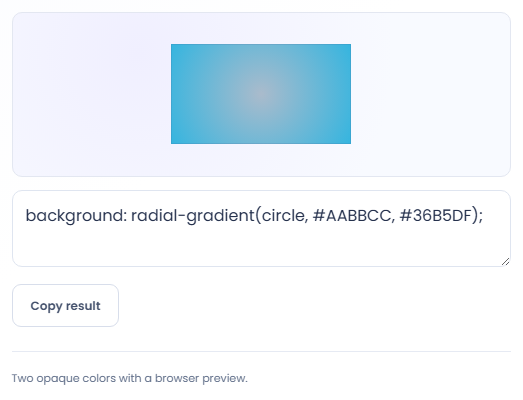
The generated declaration is a starting point for a specific element in your own stylesheet.
Try a two color transition for a heading area or section panel. Compare it at the actual width and height of the section after copying the CSS, because a transition on a wide banner can look different from the tool preview.

Generate a background for a button, then test the label over both ends of the transition. A color that works behind one word position may fail elsewhere. Keep hover, focus, and disabled styles in the component stylesheet rather than assuming this declaration supplies them.

Share the CSS declaration with a mockup when discussing a visual treatment. The declaration records the two colors, gradient type, and any linear angle more clearly than a screenshot alone, but it does not describe spacing or other component styling.

Use the visual preview to compare the two color stops, then inspect the CSS declaration you will place in a stylesheet.
The output is a background declaration using either linear-gradient or radial-gradient. It can be pasted into a CSS rule, but it is not a complete selector or a complete theme definition.
The radial result uses a circle. The tool does not expose transparency, extra color stops, or detailed stop positions. Add those separately only if your design requires a different CSS expression.

Check the color values and gradient type before testing the declaration in its intended element.
Use valid opaque hexadecimal colors and confirm the selected gradient type. If the angle appears to have no effect, check whether radial is selected before treating the preview as incorrect.
Check text contrast at the colors actually behind the text, including intermediate regions. A contrast check for two solid colors alone cannot evaluate every position in a gradient or every state of the component.

Calculate the WCAG 2 contrast ratio and AA/AAA results for normal and large text.
Open tool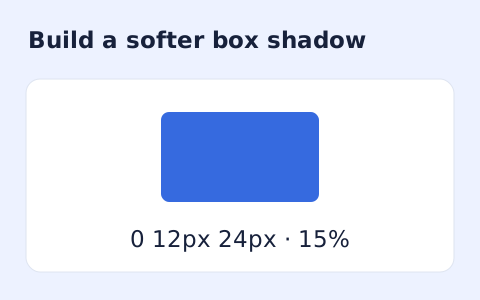
Create a CSS box-shadow declaration from editable shadow settings and copy the result.
Open tool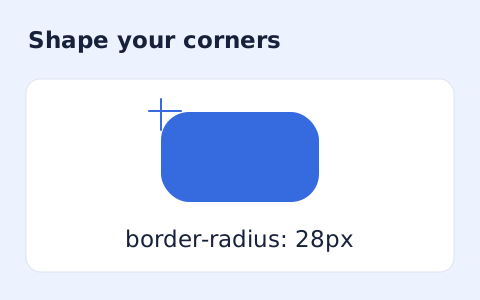
Generate a CSS border-radius declaration from four corner values and preview the shape.
Open toolChoose another tool for your next calculation, conversion, or text task.
Create one or more RFC 4122 version 4 UUIDs locally and copy them in one click.
Open tool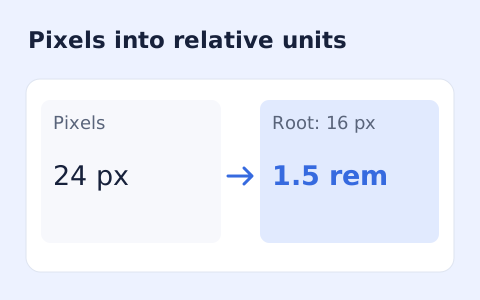
Convert pixel values to CSS rem units with a configurable root font size and a quick reference table.
Open tool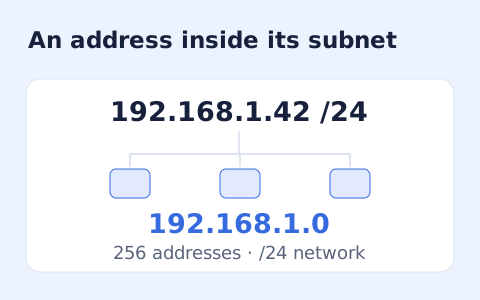
Calculate IPv4 subnet details from an address and CIDR prefix, including /31 and /32 cases.
Open tool
Calculate HMAC-SHA-256, SHA-384, or SHA-512 locally and copy hexadecimal or Base64 output.
Open toolChoose two opaque colors and a gradient type, then use the preview to inspect their transition.
Answers about using CSS Gradient Generator and understanding its results.
Yes. Both #RGB and #RRGGBB inputs are accepted.
Yes. Copy the background declaration into a CSS rule.
No. The radial output is circular; the angle applies only to the linear type.
This form accepts two opaque colors. Edit the generated CSS separately if you need additional stops or positions.