
OBJ to STL Converter
A binary STL triangle mesh. Read OBJ vertices and triangular or convex planar faces, calculate normals and write binary STL.
Open toolLoad a STEP model with the bundled Open CASCADE WebAssembly importer and export its triangle meshes. Up to 10 MB input and 100,000 output triangles.
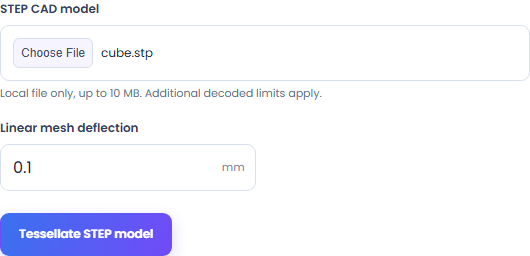
Enter the inputs, then select Tessellate STEP model.
Result will appear here
Load a STEP model with the bundled Open CASCADE WebAssembly importer and export its triangle meshes.
The tool processes the supplied input with browser APIs and bundled local libraries.
Supply supported input and review the result.
Choose STEP CAD model. Processing reads the file in this browser.
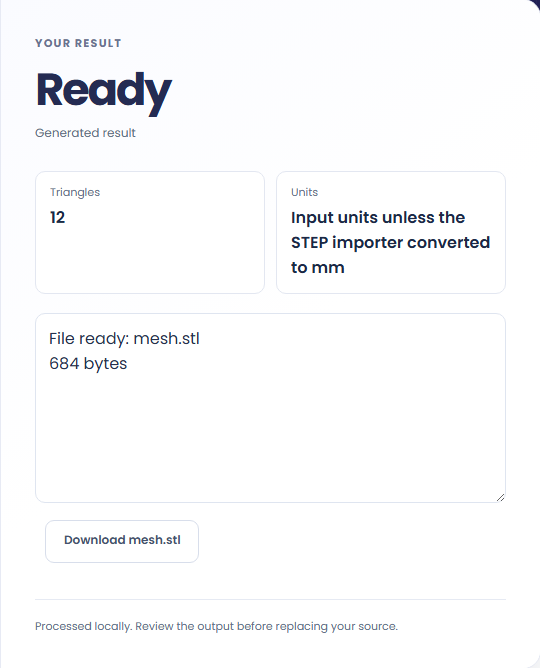
Save a binary STL surface mesh. Check the download in its target application before replacing your source.
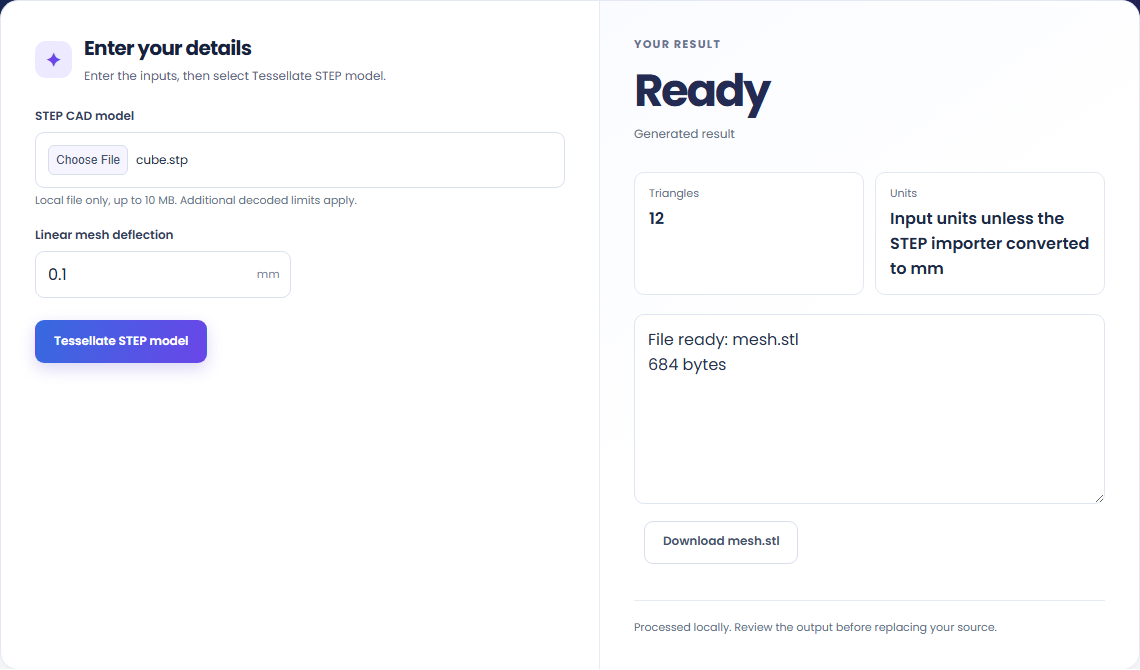
STEP surfaces are tessellated by Open CASCADE. The STL result contains triangles rather than parametric CAD features.

A smaller deflection generally creates a finer surface approximation. Increase it if the model exceeds the triangle limit.
The importer converts units to millimeters. Review scale, surface accuracy and mesh topology in your manufacturing workflow.

Review the format and conversion policy.
A binary STL surface mesh. Up to 10 MB input and 100,000 output triangles. Output is a tessellated surface in millimeters, not a CAD solid. Deflection controls approximation; dimensions and topology need review before manufacturing.
Keep the original while checking the saved output. The result reflects the input and settings you supplied.

Check these conditions before converting.
Up to 10 MB input and 100,000 output triangles. Output is a tessellated surface in millimeters, not a CAD solid. Deflection controls approximation; dimensions and topology need review before manufacturing.
The page does not keep inputs or results after leaving. Keep the source and save the output you need.

A binary STL triangle mesh. Read OBJ vertices and triangular or convex planar faces, calculate normals and write binary STL.
Open tool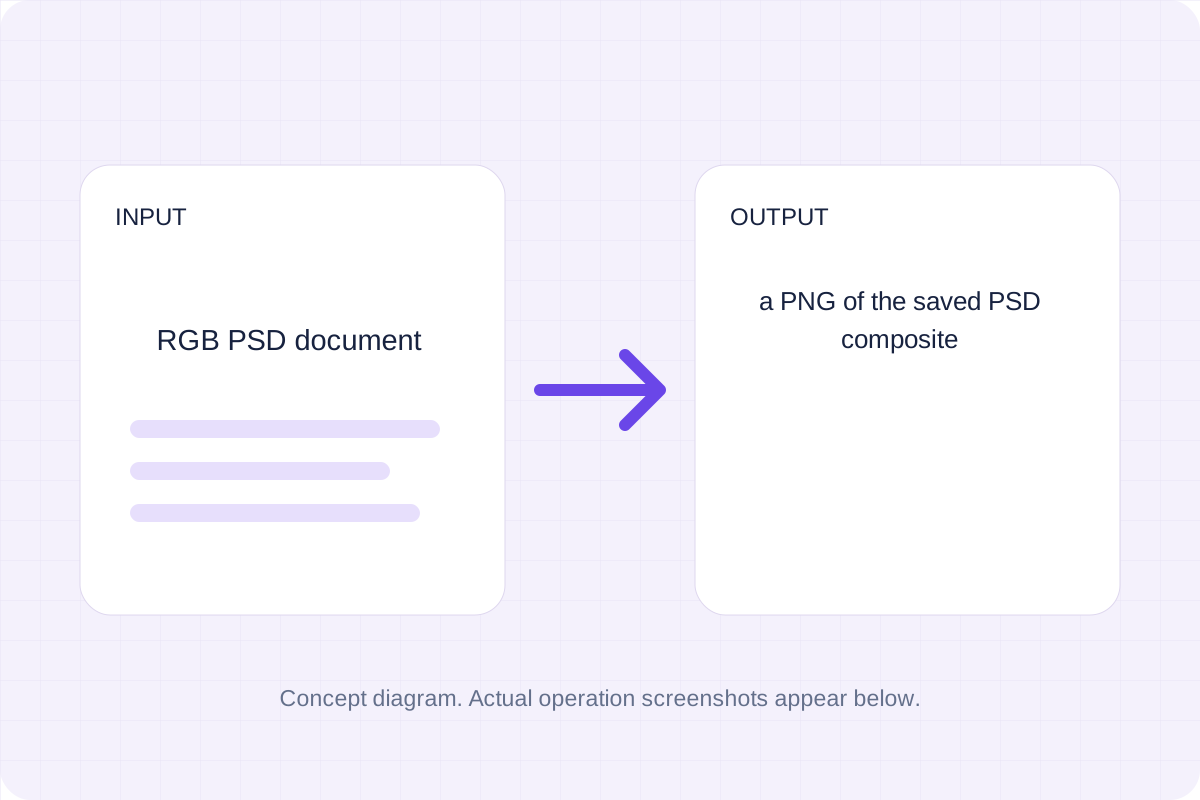
A PNG of the saved PSD composite. Decode the embedded RGB composite of a local PSD and export its pixels.
Open tool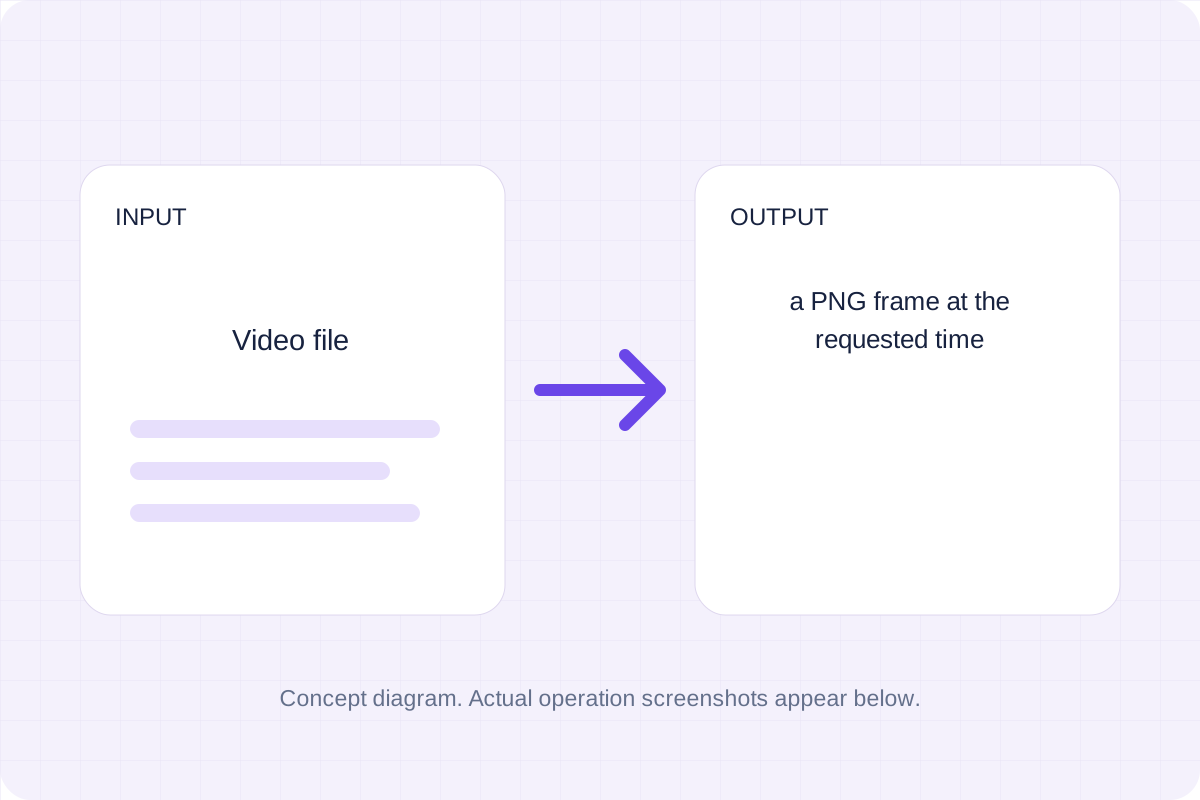
A PNG frame at the requested time. Seek a browser-decodable local video and draw its frame onto a canvas.
Open toolChoose another tool for your next calculation, conversion, or text task.
Write Markdown, update the rendered preview and download the Markdown or HTML when it is ready.
Open tool
Convert a modern .docx document to Markdown. Keep common text, headings, links and lists while leaving images, page layout and complex formatting for manual editing.
Open tool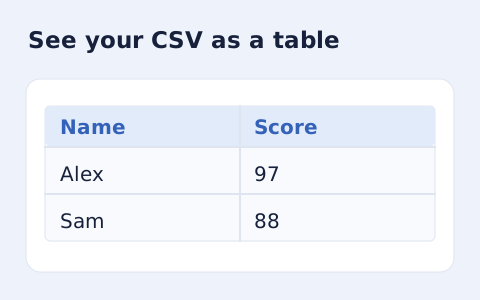
Inspect quoted CSV cells in a readable table without uploading your data.
Open tool
Optimize self-contained SVG source with local SVGO processing. Choose decimal precision, download the smaller markup and compare its appearance with the original.
Open toolReview the supported output and save your result.
Answers about using STEP to STL Converter and understanding its results.
Save a binary STL surface mesh. Up to 10 MB input and 100,000 output triangles. Output is a tessellated surface in millimeters, not a CAD solid. Deflection controls approximation; dimensions and topology need review before manufacturing.
No. Processing uses browser APIs and bundled local libraries. The selected file or entered source is not sent to a conversion server. Save the result before leaving.