
Audio pitch changer
A PCM WAV with pitch and duration changed together. Resample decoded audio at a playback-rate factor of two to the semitone shift divided by twelve.
Open toolUpdate the PNG pHYs pixel-density chunk with the requested pixels per inch. PNG input and output only.
Enter the inputs, then select Process image.
Result will appear here
Update the PNG pHYs pixel-density chunk with the requested pixels per inch.
PNG input and output only. Compressed pixel bytes are preserved; no resampling or JPEG metadata editing. Applications may round the displayed density.
Start with your own input.
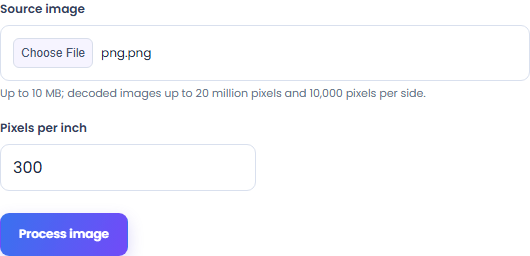
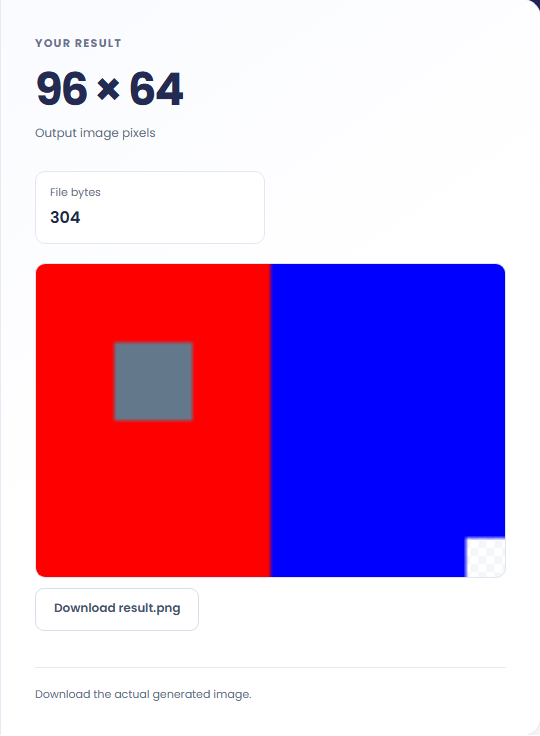
Select Process image. Review an edited PNG file, then download the result file.
To set PNG print-density metadata, start with source image. Update the PNG pHYs pixel-density chunk with the requested pixels per inch.
To keep pixels while changing the print hint, start with source image. PNG input and output only.
To inspect a PNG physical-size setting, start with source image. Review an edited PNG file, then download the result file.
Check what the output means.
An edited PNG file. Update the PNG pHYs pixel-density chunk with the requested pixels per inch.
PNG input and output only. Compressed pixel bytes are preserved; no resampling or JPEG metadata editing. Applications may round the displayed density.
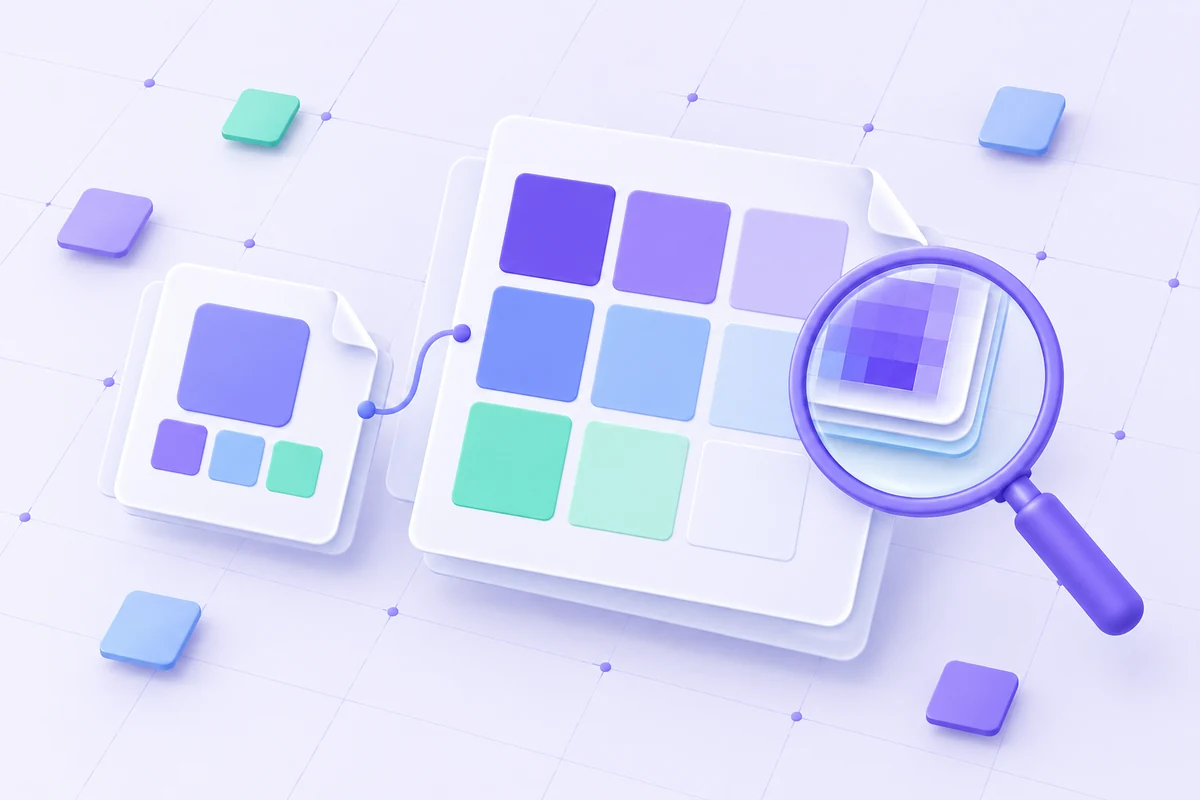
Check the format before processing.
PNG input and output only. Compressed pixel bytes are preserved; no resampling or JPEG metadata editing. Applications may round the displayed density.
Inputs and results are handled in this browser.

A PCM WAV with pitch and duration changed together. Resample decoded audio at a playback-rate factor of two to the semitone shift divided by twelve.
Open tool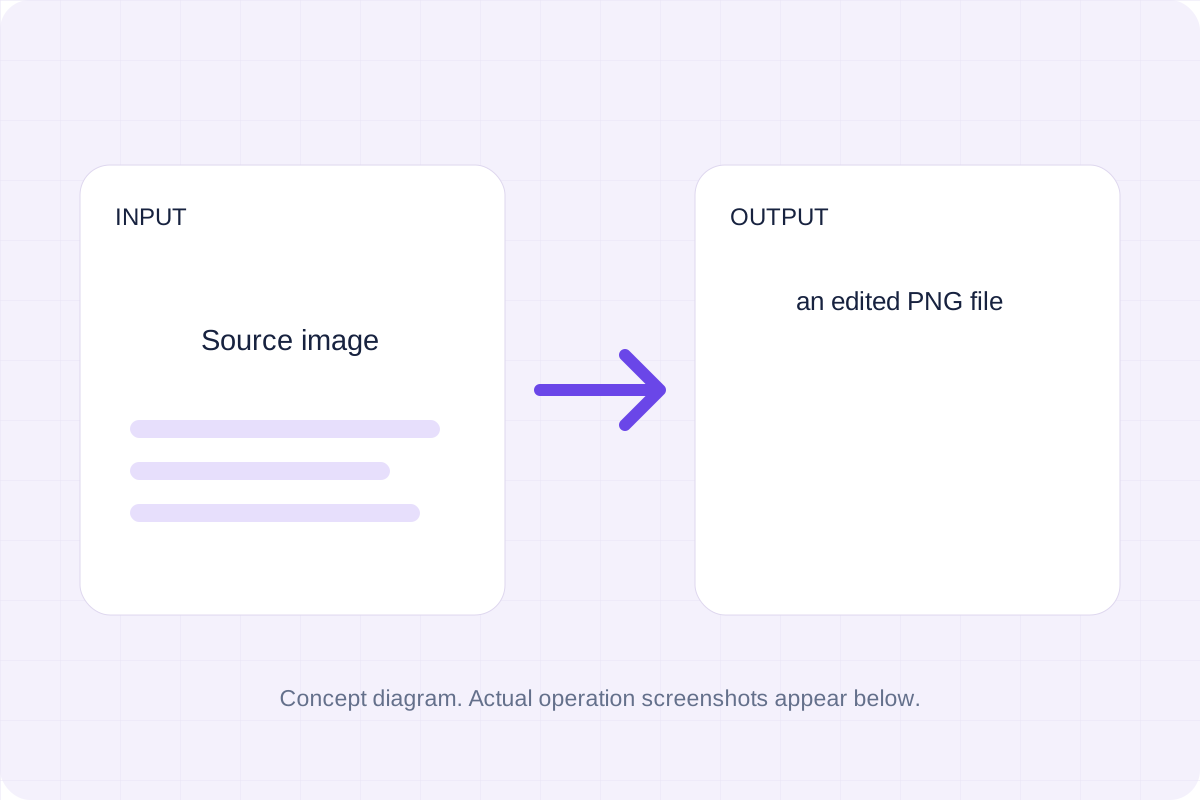
Draw a single line of supplied text onto the bitmap using a browser sans-serif font.
Open tool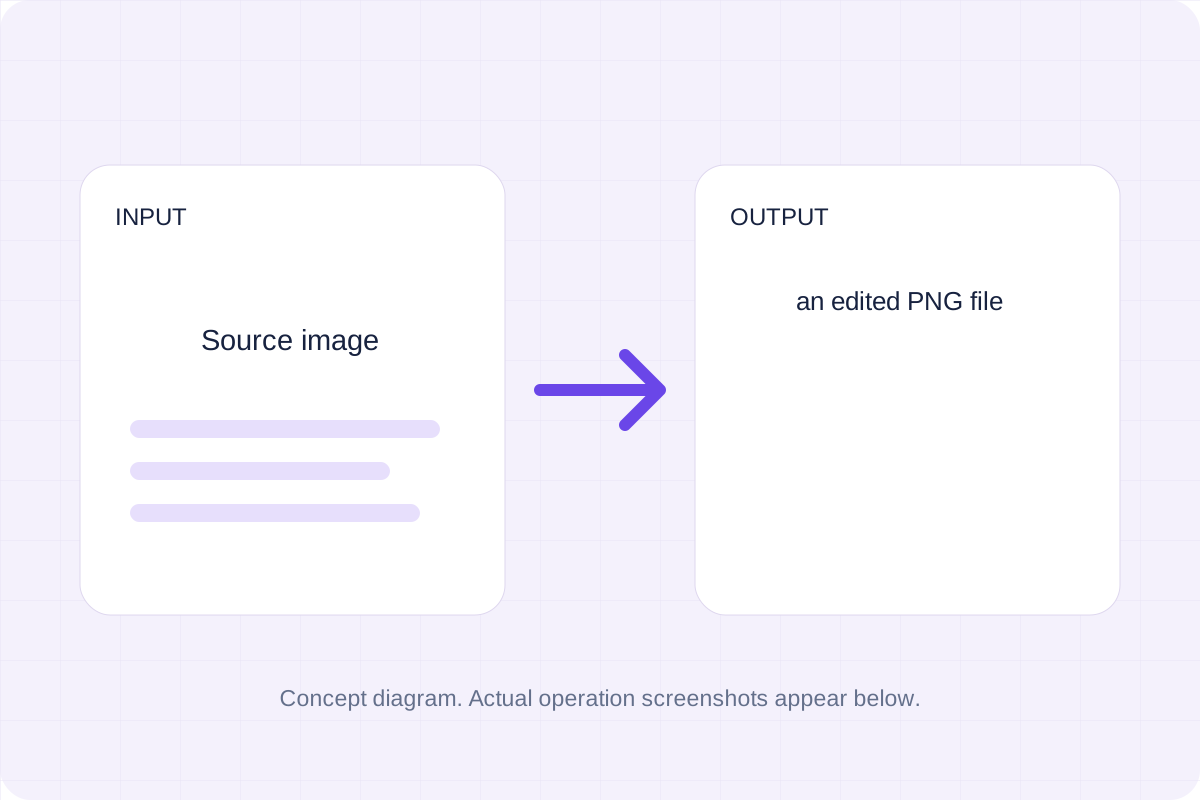
Draw one text watermark at the lower-right corner with the supplied opacity.
Open toolChoose another tool for your next calculation, conversion, or text task.
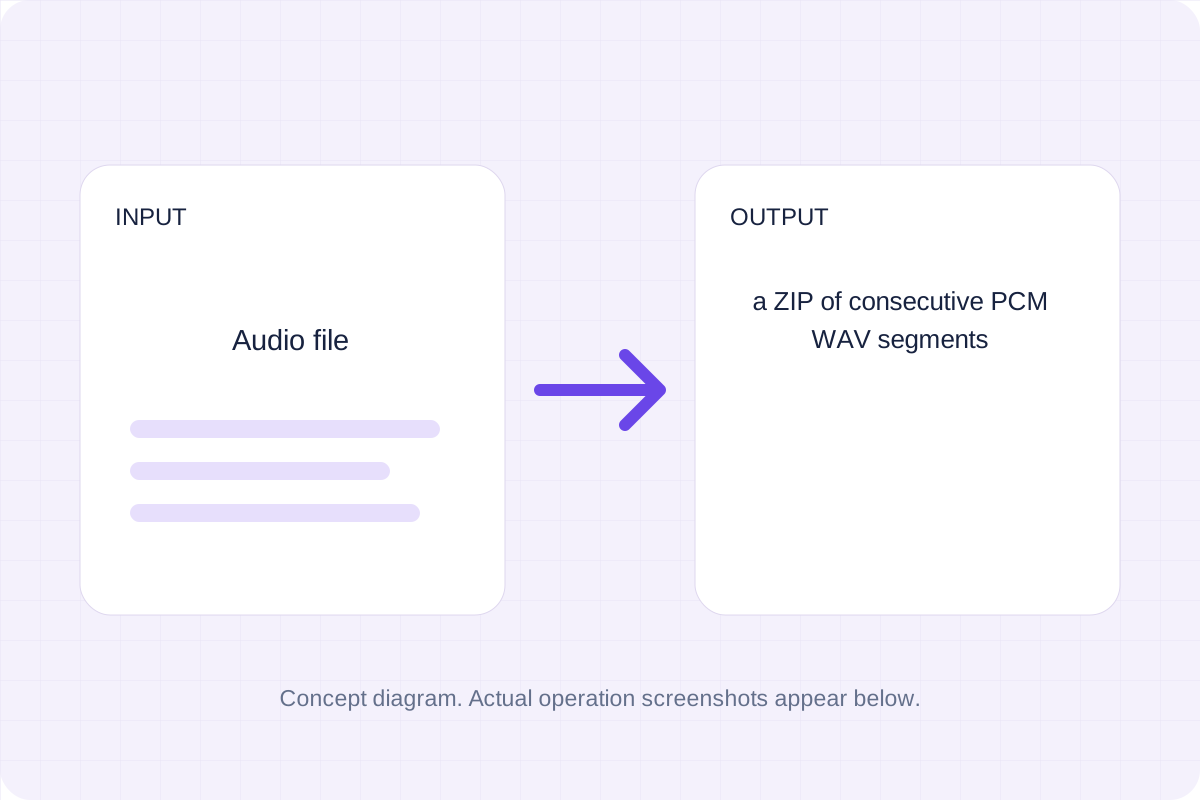
A ZIP of consecutive PCM WAV segments. Copy decoded audio samples into consecutive files at the entered segment duration.
Open tool
A PCM WAV containing the selected audio interval. Decode the local audio and copy samples between the entered start and end times.
Open tool
Decode the selected AVIF image and encode a PNG file at the same pixel dimensions.
Open tool
Apply the canvas Gaussian blur filter to the source bitmap.
Open toolReview an edited PNG file, then download the result file.
Answers about using Image Dpi Changer and understanding its results.
PNG input and output only. Compressed pixel bytes are preserved; no resampling or JPEG metadata editing. Applications may round the displayed density.
Yes. Download the result file after processing. Text results also have Copy result. Processing uses local browser code; no account is required.